

AI can generate captions that are much better than YouTube's automatic subtitles.
Get professional-quality subtitles and upload them to YouTube in just a few clicks.
No credit card required
Used by 50,000+ creators, media teams, and educators who publish regularly.
YouTube's built-in captions get the words roughly right. Fluen gets the punctuation, segmentation, and formatting right too.
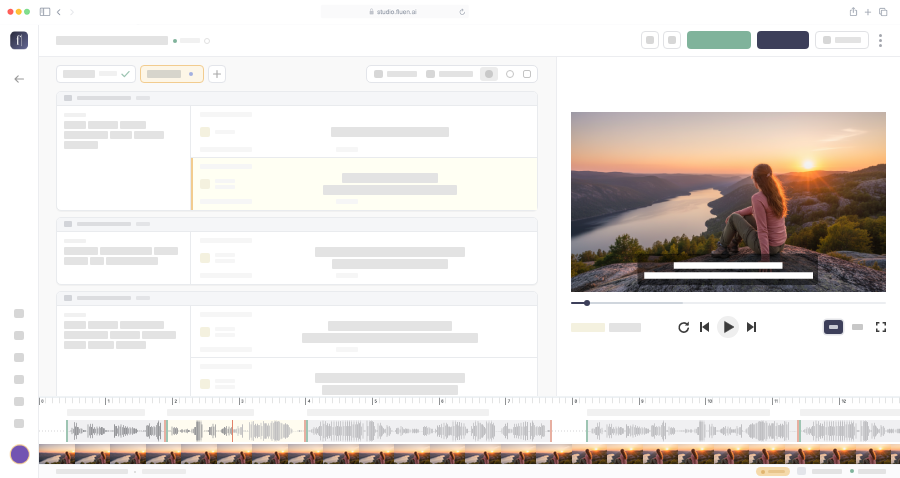
In your Fluen Studio workspace, click "Add New" and upload the video file, or import it from Google Drive or Dropbox.
Choose your video's language, pick any languages you want it translated into, and decide whether speakers should be labeled.
Click "Submit" and wait until your video has been processed. It usually takes a minute or two. When the captions are ready, open the caption track to review it in the editor.
Check the generated captions and correct anything you like. When you're done, click "Export", choose "Subtitles File", select "SubRip (.srt)" as the format and export the file. Downloading subtitles is included in every paid plan.
Open YouTube Studio and select "Subtitles" from the left menu. Choose your video, click "Add language", then "Upload file", pick "With timing" and select your SRT. Review your subtitles once more in the preview, and click "Publish".
Our AI goes beyond basic voice-to-text, delivering highly accurate captions with perfect timing that matches the action — giving you seamless, hassle-free results every time.
We combine advanced translation technology with AI to ensure your translations are smooth and perfectly timed. Our system even adjusts the structure when necessary to keep your content flowing seamlessly.
Choose from 30+ caption styles, including dynamic captions that highlight each word as it's spoken, or fine-tune your own. Export an SRT for YouTube, or a burned-in MP4 for Shorts and other short clips. See dynamic captions →
Collaborate with your team in shared workspaces. Share files, manage permissions, and streamline your workflow to create better subtitles with fewer edits — all on one platform.
Fluen's context-aware AI translation doesn't just swap words. It re-segments every subtitle for the target language, respecting character-per-line limits and natural reading flow. Upload captions in one language, export in dozens.
Upload your video file to Fluen (or import it from Google Drive or Dropbox), and our AI generates accurate captions automatically. Review them in the built-in editor, then export as an SRT file. In YouTube Studio, go to your video's Subtitles section, click "Add language," then "Upload file" and select your SRT. Your professional captions will appear exactly as you reviewed them.
Yes, significantly. YouTube's auto-captions miss punctuation, break lines mid-word, ignore capitalization, and produce long, unreadable subtitle blocks. Fluen generates broadcast-quality captions with proper punctuation, smart segmentation at natural sentence boundaries, correct capitalization, and optional speaker labels. The difference is immediately visible to your viewers.
Absolutely. Once your captions are generated and reviewed, translate them into 50+ languages with Fluen's AI translation engine. Each translation is context-aware and automatically re-segmented for the target language. Export a separate SRT for each language and upload them all to YouTube Studio. Learn more about subtitle translation →
YouTube accepts SRT (SubRip) and VTT (WebVTT) subtitle files. Fluen exports both formats. SRT is the most widely used and recommended for YouTube uploads. Simply download your SRT from Fluen and upload it in YouTube Studio under your video's Subtitles settings.
Most files are processed in minutes. A typical 10-minute YouTube video takes about 1–2 minutes to transcribe. Longer videos (60+ minutes) take 3–5 minutes. Processing time depends on file length, audio quality, and the AI engine selected. You'll be notified as soon as your captions are ready.
Yes. The free plan lets you caption and translate 3 files (up to 90 minutes each) and review the results in the editor, no credit card required. Downloading subtitles (including the SRT for YouTube), exporting video and importing your own SRT files require a paid plan. See pricing →
Upload your first file free. No credit card. No commitment.
Or compare plans