
Fluen captions your lesson videos and translates them into 50+ languages.
On any Thinkific plan, students pick their language from the CC menu.
No credit card required
| Thinkific AI captions | Fluen + Thinkific | |
|---|---|---|
| Thinkific plan needed | Plus Silver or higher | Any plan: SRT upload is on every Thinkific plan |
| Languages | One caption file, in the language spoken | Captions in 60 languages, translated into 50+ |
| Editing | Fix words; timing can't be changed | Words, timing to the millisecond, line length and reading speed |
| Course terminology | No glossary | Custom glossary keeps your terms consistent in every language |
| Many lessons at once | Automatic for every video once switched on | Up to 50 files per upload; every lesson and language in one ZIP |
Thinkific details from Thinkific's help center, November 2026.
Use the same video files you uploaded to Thinkific. Click "Add New" and pick them from your computer, Google Drive or Dropbox. Paid plans take up to 50 files per upload, so a whole course goes in at once.
Set the language spoken in the lessons and every language you want them translated into. Save them as your workspace's Subtitle Defaults and each new lesson is translated the same way.
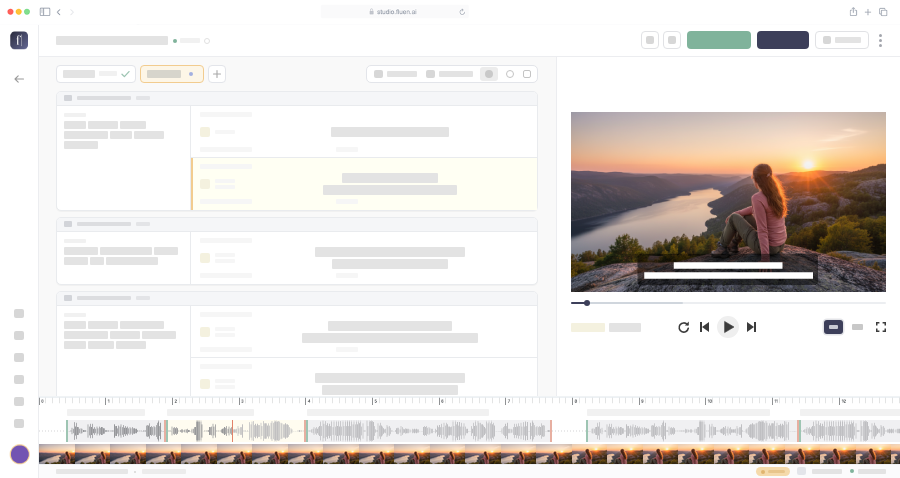
Click "Submit" and the captions are ready in a minute or two. Open each track in the editor to check names and course terms; the issues list takes you straight to any subtitle that is too long or too fast to read.
Click "Export", keep "Subtitle file" and choose "SubRip (.srt)". Pick one language, or "All languages (ZIP)" to get every language at once. To export several lessons together, select them in your library first. Downloading subtitles is included in every paid plan.
In your Thinkific Admin Dashboard, go to Products → Asset Library and click the video. Turn on the Captions toggle, drag in the SRT files (one per language, up to 25 at a time) and click "Upload captions". Students switch languages from the CC icon in the player.
Add your method names, product names and jargon to a glossary once. Fluen uses it in every lesson and every language, so a term students learn in lesson 1 reads the same in lesson 40. How the glossary works →
Every translation is split again for its own language and rephrased where needed to fit the reading speed, so students aren't left chasing subtitles that flash past.
On the Team plan, send each language to a reviewer with a private link, no account needed. They comment, suggest wording and approve, language by language. See reviews and approvals →
Export lesson transcripts as Word or PDF handouts, or burn styled captions into an MP4 for your course trailer and social clips. See caption styles →
Thinkific plays a caption file per language on the same video, so one course can serve every market without re-recording or duplicating products. Fluen's context-aware translation re-segments every subtitle for the target language, respecting line-length limits and natural reading flow.
Upload the lesson video to Fluen, review the AI captions in the editor and export them as an SRT file. In your Thinkific Admin Dashboard, go to Products, then Asset Library, and click the video. Turn on the Captions toggle, drag in the SRT file and click "Upload captions". Students turn the captions on with the CC icon in the video player.
Yes. Thinkific accepts one caption file per language on each video, and students choose their language from the CC menu. Thinkific's own AI captions only produce the language spoken in the video, so the other languages need SRT files made elsewhere. Fluen translates your captions into 50+ languages and exports one SRT per language, or all of them in a single ZIP. Learn more about subtitle translation →
No. Thinkific's automatic AI captions need a Plus Silver plan or higher, but uploading your own SRT files works on every Thinkific plan. Fluen's subtitles go in through that upload.
Yes. Download the SRT from the video in Thinkific's Asset Library, upload the same video to Fluen and, during caption review, replace Fluen's captions with your SRT. Then translate it into the languages you need. Importing your own SRT is included in every paid plan.
Fluen's SRT files already follow Thinkific's format rules: plain text with no styling tags, timecodes that start at zero, and spaces around the arrows. Fluen names each file after the video and its language (for example Lesson 1.es-ES.srt), so if the video title contains spaces and the upload is refused, remove them from the file name. Each file must also be under 5 MB, which covers several hours of subtitles.
No. Fluen isn't affiliated with Thinkific and isn't in the Thinkific App Store. It works alongside Thinkific through standard SRT caption files, which every Thinkific plan accepts, so there is nothing to install on your site.
Yes. The free plan lets you caption and translate 3 files (up to 90 minutes each) and review the results in the editor, no credit card required. Downloading subtitles (including the SRT files for Thinkific), exporting video and importing your own SRT files require a paid plan. See pricing →
Caption your first lesson free. No credit card. No commitment.
Or compare plansThinkific is a trademark of Thinkific Labs Inc. Fluen is not affiliated with or endorsed by Thinkific.