

Pick a ready-made look, from clean broadcast subtitles to word-by-word animation, then fine-tune it and save it for your team. Translations, share links and burned-in videos all follow the same style.
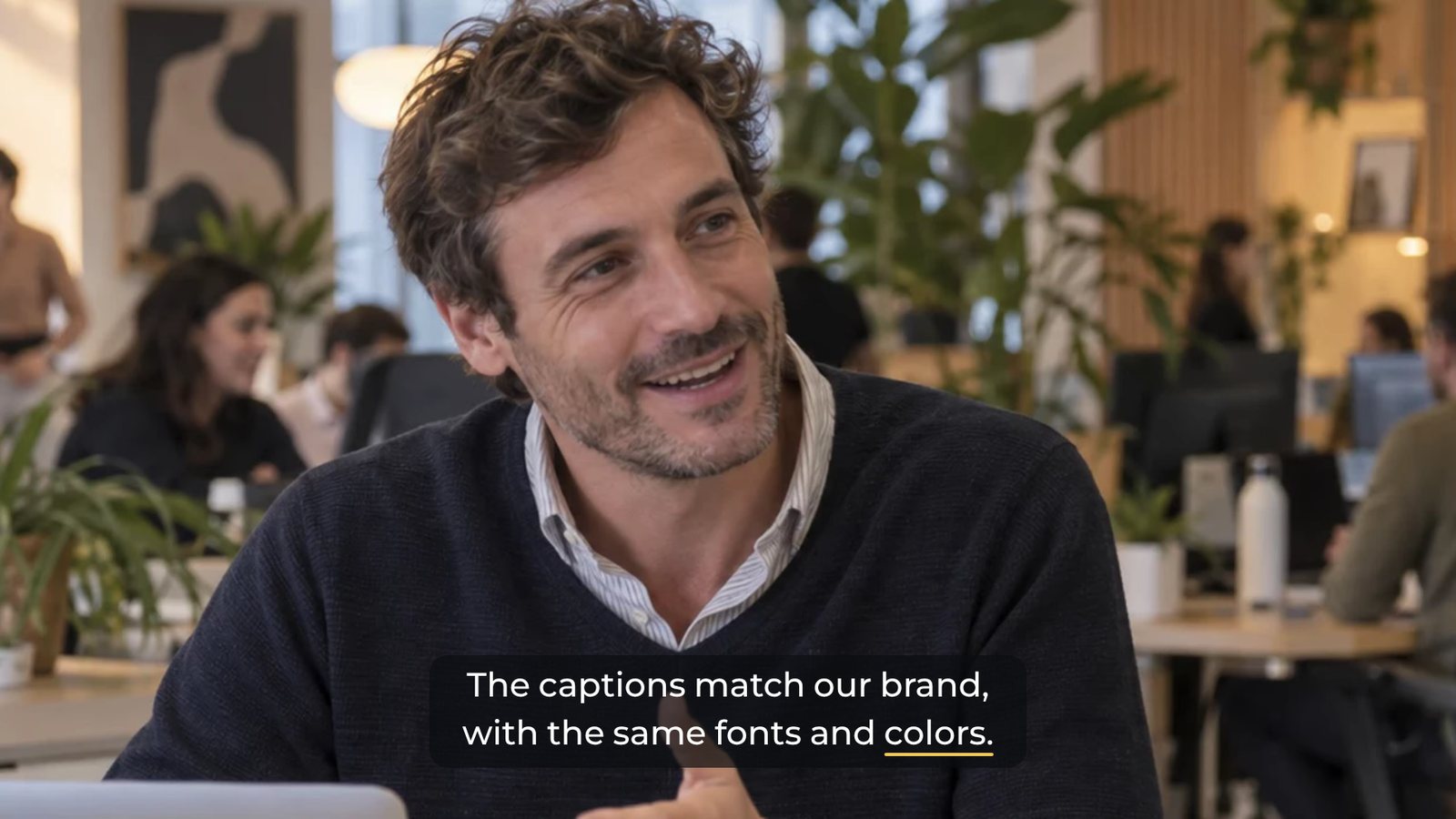
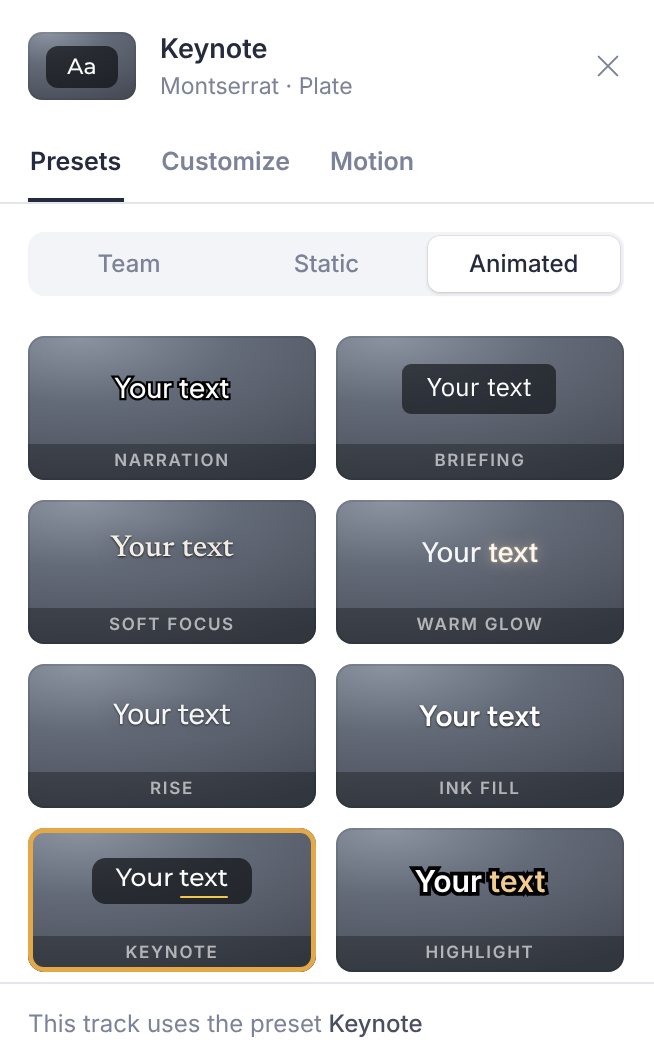
32 built-in styles: 18 static and 14 animated, from broadcast subtitles to bold captions for social video. Click one and the whole track takes it on, with Undo one click away.
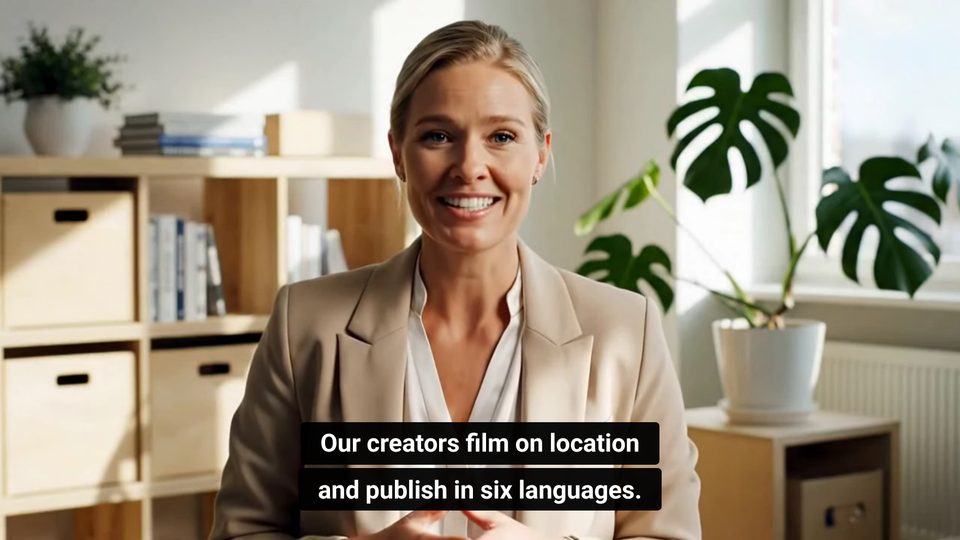
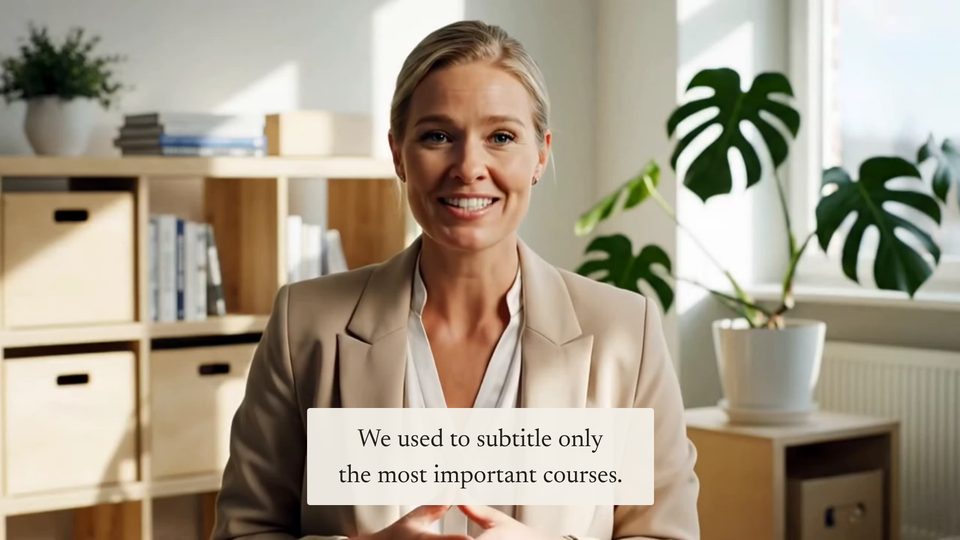
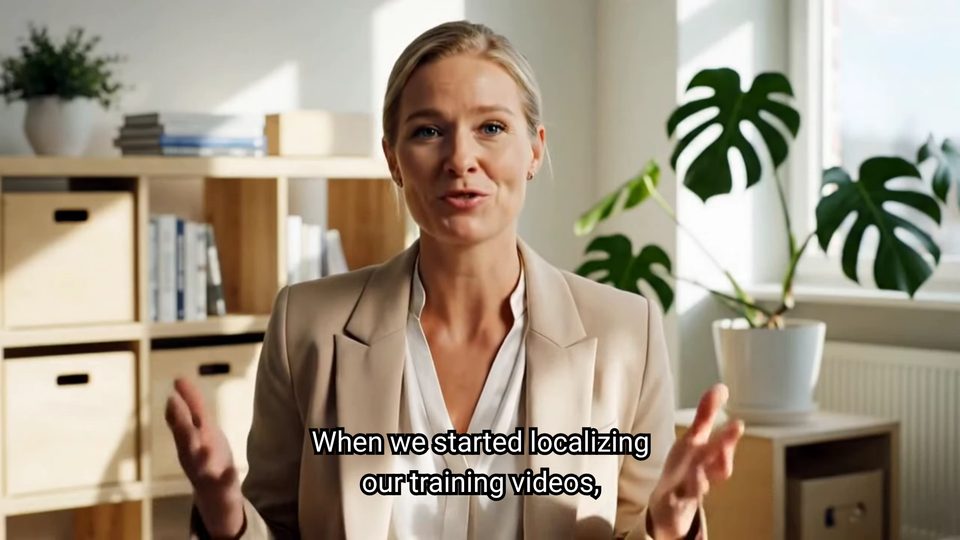
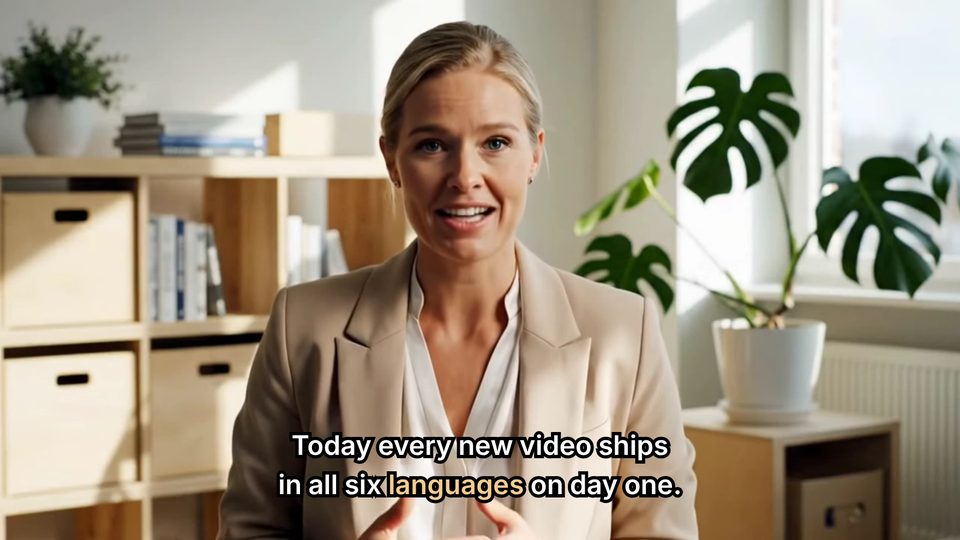
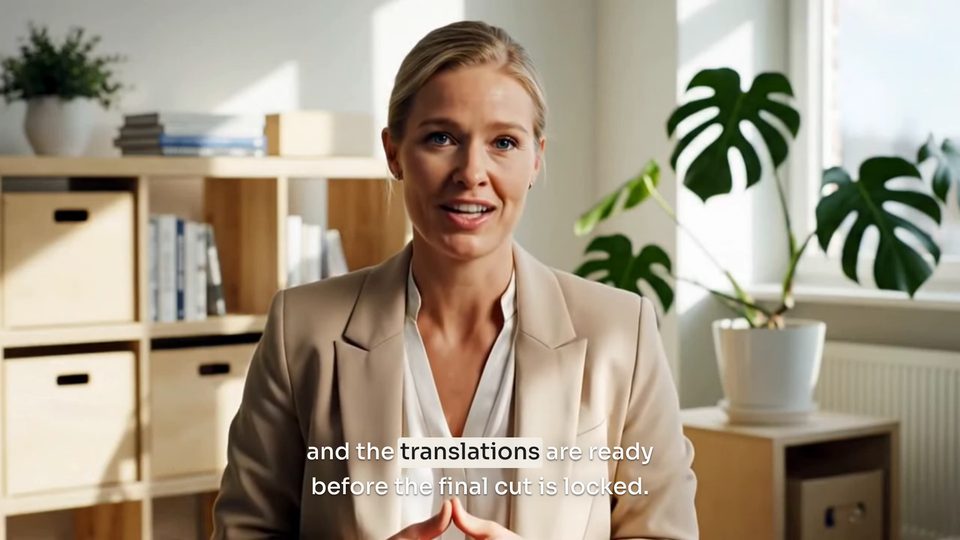
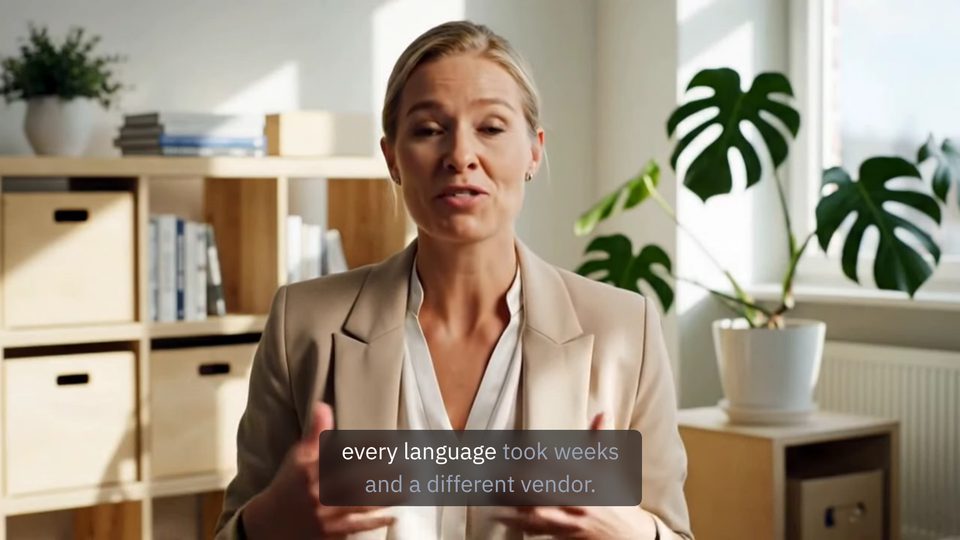
Change any preset in the Customize tab: 72 fonts grouped by script, colour, size, line height and letter spacing, an outline or a soft shadow, a plate behind the words, or a full-width scrim, band or letterbox.
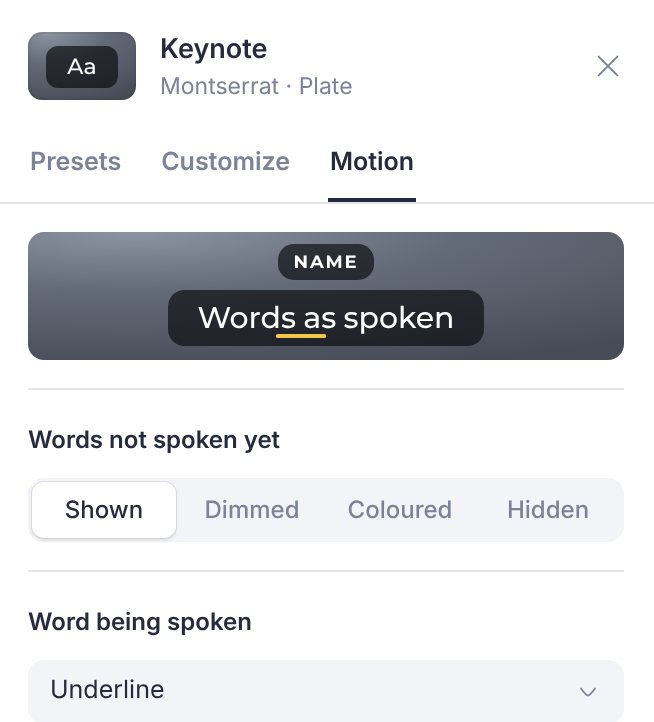
The Motion tab sets how animated styles follow the speech. Words not spoken yet can be dimmed, coloured or hidden, and the word being spoken can change colour, sit on a plate, get an underline, scale up or glow.
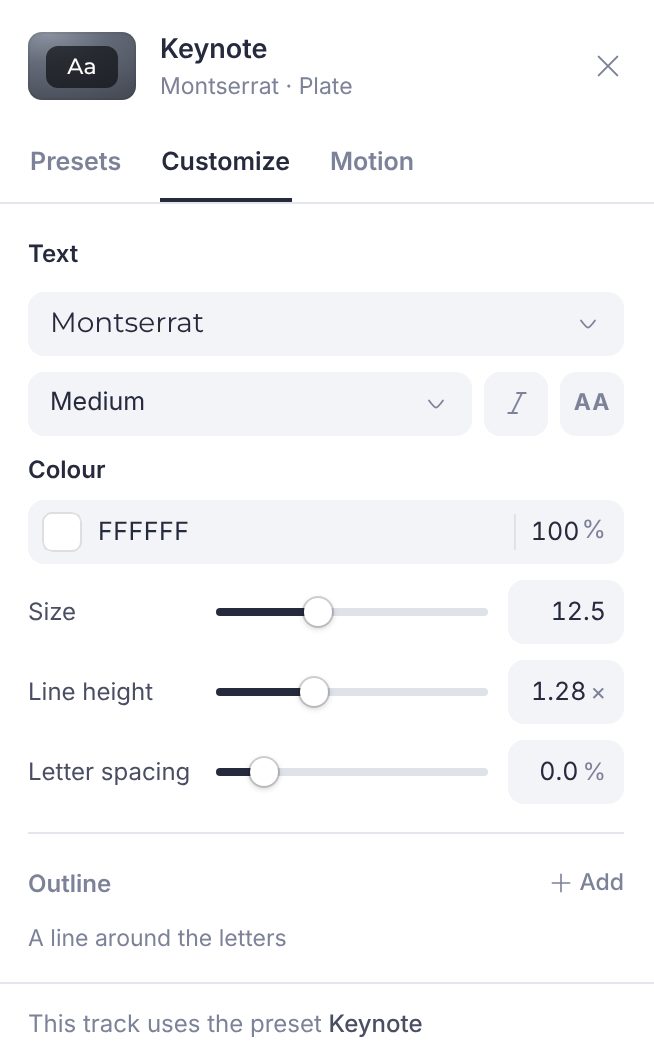
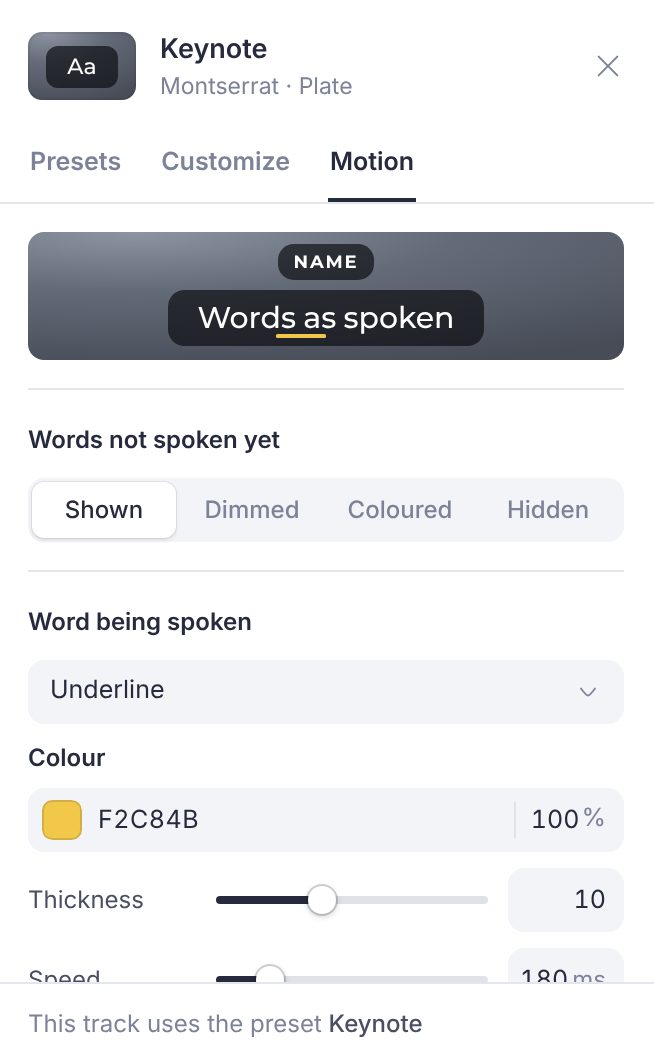
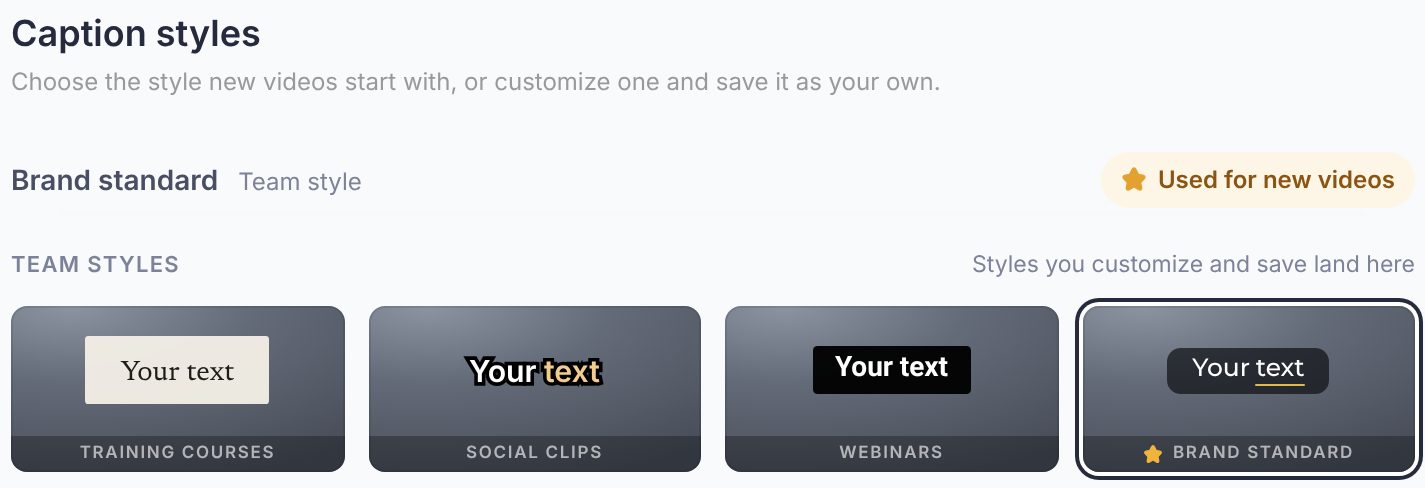
Save a look under a name and everyone in the workspace can apply it in one click. The owner picks the style every new video starts with in Workspace Settings > Caption styles, so new uploads are on brand from the start.
Translations follow the original's style until you give one its own. Fonts switch automatically for scripts like Arabic, Japanese or Hindi.
Turn on name labels and each style shows who is talking in a label that matches its look. Subtitle files keep the plain [Name] format.
Review links and burned-in MP4s follow the same style, animation included. Burned-in export is on paid plans.
Drag the caption on the video and resize it from its corners. Pink guides mark the centre and the 5% margins while you drag, and the position sticks with the track.
Drag one subtitle and they all follow. Need to clear a busy lower-third in one shot? Choose Only this subtitle and the rest stay where they were.
Step-by-step: position captions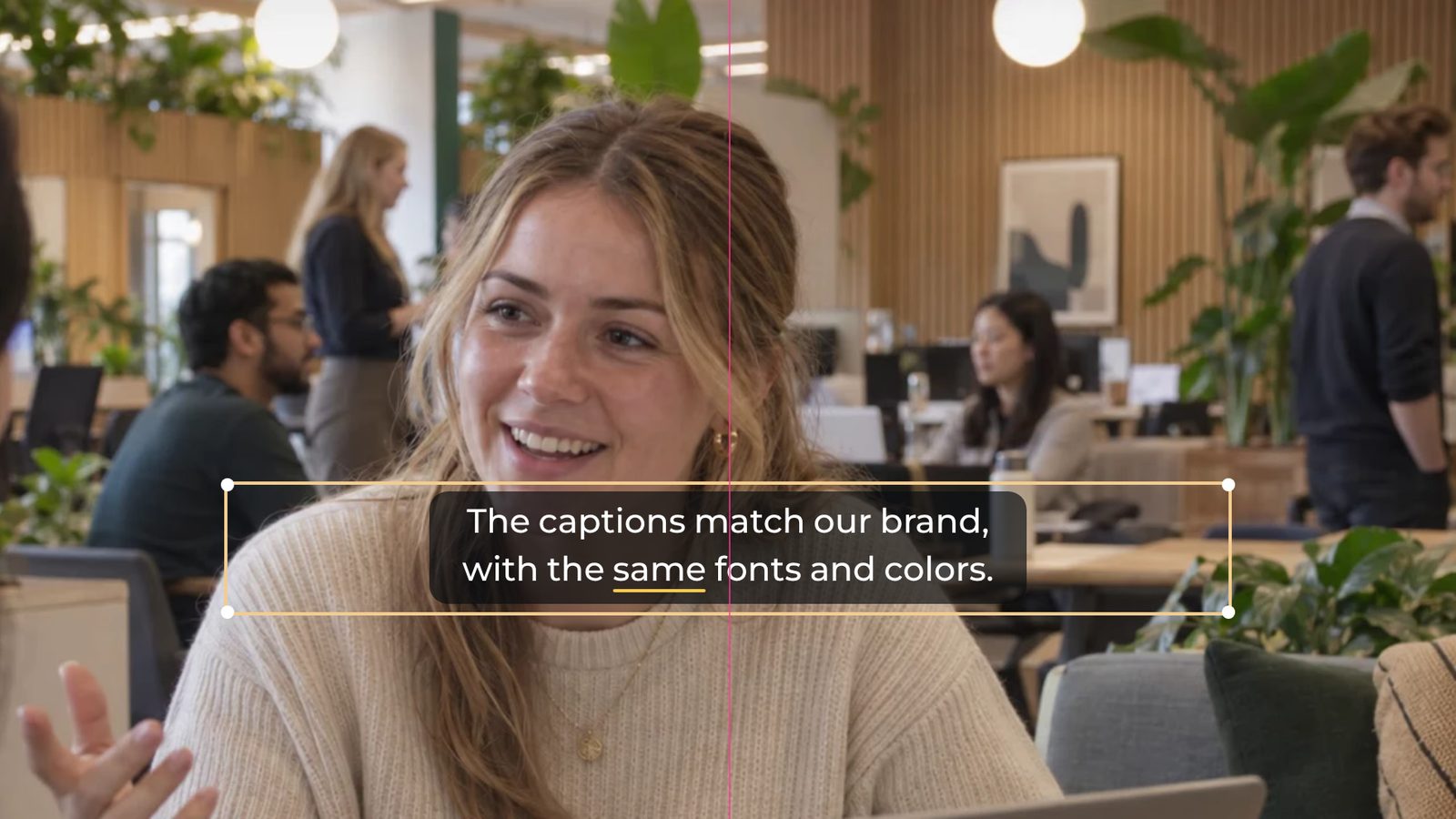
On vertical videos, captions sit in the social-media safe zone by default, clear of the buttons and descriptions TikTok, Reels and Shorts draw over the bottom of the picture. Drag a caption and a line marks the edge of the zone.
Prefer the bottom edge anyway? Turn on Always at the bottom in Workspace Settings > Caption styles. When the video is ready, export it with the captions burned in and upload it like any other MP4.
See burned-in export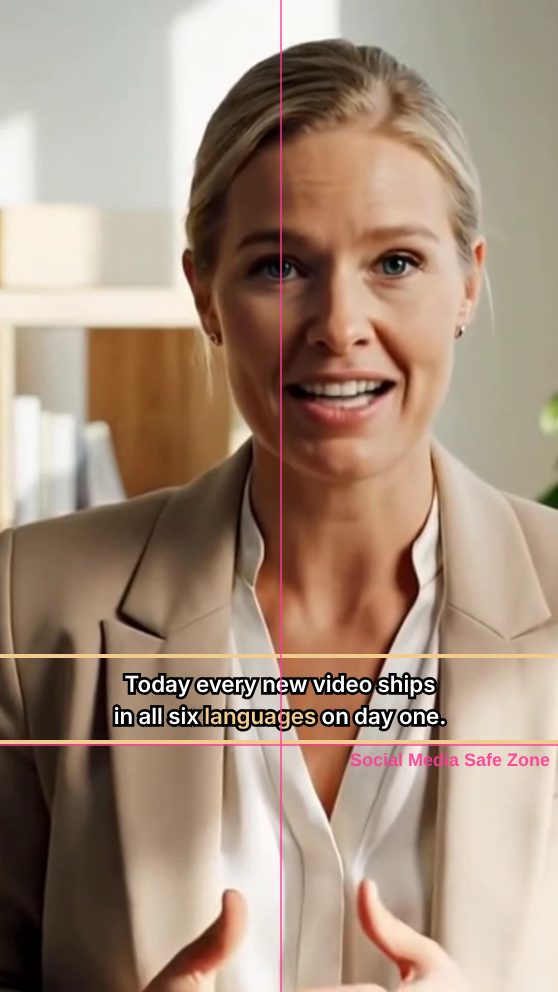
Dynamic captions, also called animated, word-by-word or karaoke captions, highlight or reveal each word as it is spoken instead of showing the whole line at once. In Fluen they are 14 of the 32 built-in caption styles, and you can fine-tune how the words move.
Yes. On vertical videos the captions sit in the social-media safe zone by default, clear of each app's buttons. Export the video with the captions burned in (on paid plans) and upload it to TikTok, Reels or Shorts like any other MP4.
Every language Fluen supports, 50+ in all. Translations follow the original's style: their words animate with timing estimated from the text, or you can show them as still captions. See all languages →
You can download SRT, VTT and five other subtitle formats on paid plans, but those files only carry the text and its timing. Players and platforms show them in their own style, without animation. To keep the look and the animation, export a burned-in MP4, where the captions are part of the picture.
Caption styles, including every animated one, are available on all plans, including Free, so you can style your captions, preview them in the editor and share them for review. Exporting a burned-in MP4 needs a paid plan. See pricing →
Yes. The MP4 is rendered from the same caption style, animation included, at 720p, 1080p or 4K. The one exception for now is frosted "blur behind" plates, which aren't in burned-in exports yet.
Three places to go next once the look is dialed in.
Export an MP4 with your caption style rendered into the picture, animation included, up to 4K. On paid plans.
Translate captions into 50+ languages, then polish them in the editor.
Seven subtitle formats, burned-in MP4, shared workspaces, custom glossary, and a REST API for everything.
Caption styles are on every plan, including Free. No credit card, no commitment.