

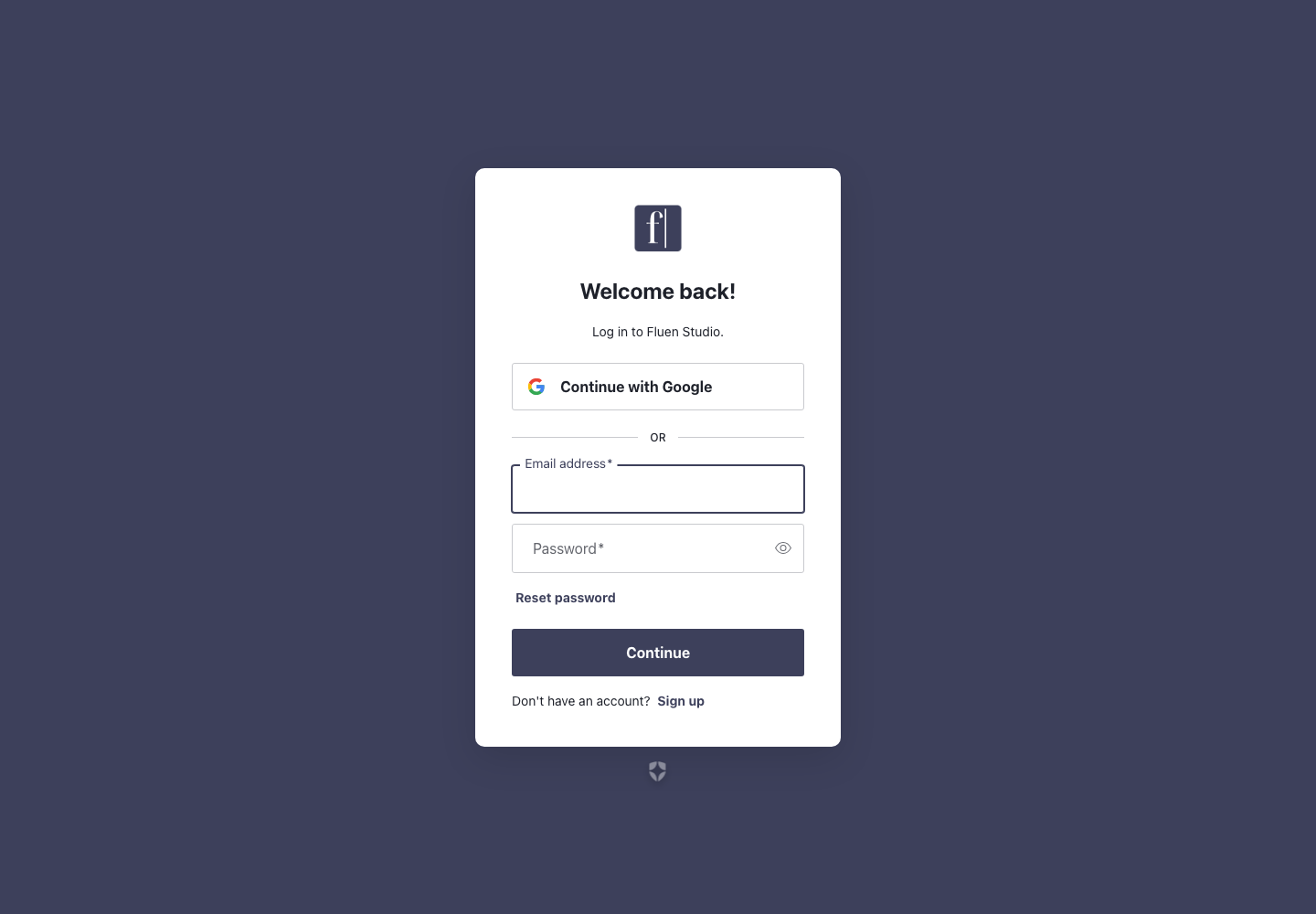
You type your email and a password, Fluen Studio says it does not recognise them, you click Reset password, and no email ever arrives. Nine times out of ten there is nothing wrong with your account or your inbox: the account was created with Continue with Google, so it has no password to reset. This page covers that case first, the rarer ones after it, and then how to add a password to a Google account so you can sign in either way.
You most likely signed up with Google
Fluen Studio offers two ways in: Continue with Google and an email-and-password form. They are separate. If you clicked the Google button the first time, your account is tied to your Google login and has no password at all. That explains both symptoms at once:
- The password form rejects any password, because none exists.
- A reset request does nothing, because there is no password to replace, so no email is sent. This is not a delivery problem, and checking spam will not help.
The fix takes one click: on the login page, click Continue with Google and pick the Google account that uses the same address. Your workspace, files and subtitles are exactly where you left them.
If Google is not it: other things to check
- The exact address. A company alias, an old address, or a one-letter typo sends the reset email to a mailbox you are not reading. Log in with the address you used to sign up, not the one you use today.
- The spam or promotions folder. Reset emails do land there occasionally. Search your mailbox for "Fluen".
- A screen saying "This email is already registered." It continues: "Your account was created with a different sign-in method." You signed in one way (Google, or email and password) on an address whose account was created the other way. The screen tells you which method to use. Click Log out and try again and sign in that way: your workspaces and files are all there. If you can no longer use that method, for example because you lost access to the Google account, write to [email protected]. (Before September 2026 this situation could open a second, empty account instead; if you still have one of those, log in the way you used the first time.)
- The browser filling in an old password. Clear the field and type it yourself, or use the eye icon to see what was entered.
Add a password so you can sign in either way
You do not need a password to keep using Fluen; Google login is a perfectly good way in. But if you would rather have one, you can add an email-and-password login to the same account in a couple of minutes. Sign up again with the same email address, and both ways of signing in open the same account. Your workspaces, files, subtitles, glossary, team members and subscription are untouched.
Log out of Fluen Studio
Log out first, so the sign-up page does not simply reopen your current Google session. The Log out entry is in the menu under your account name at the bottom left of the media library.
Sign up again with the same email and a password
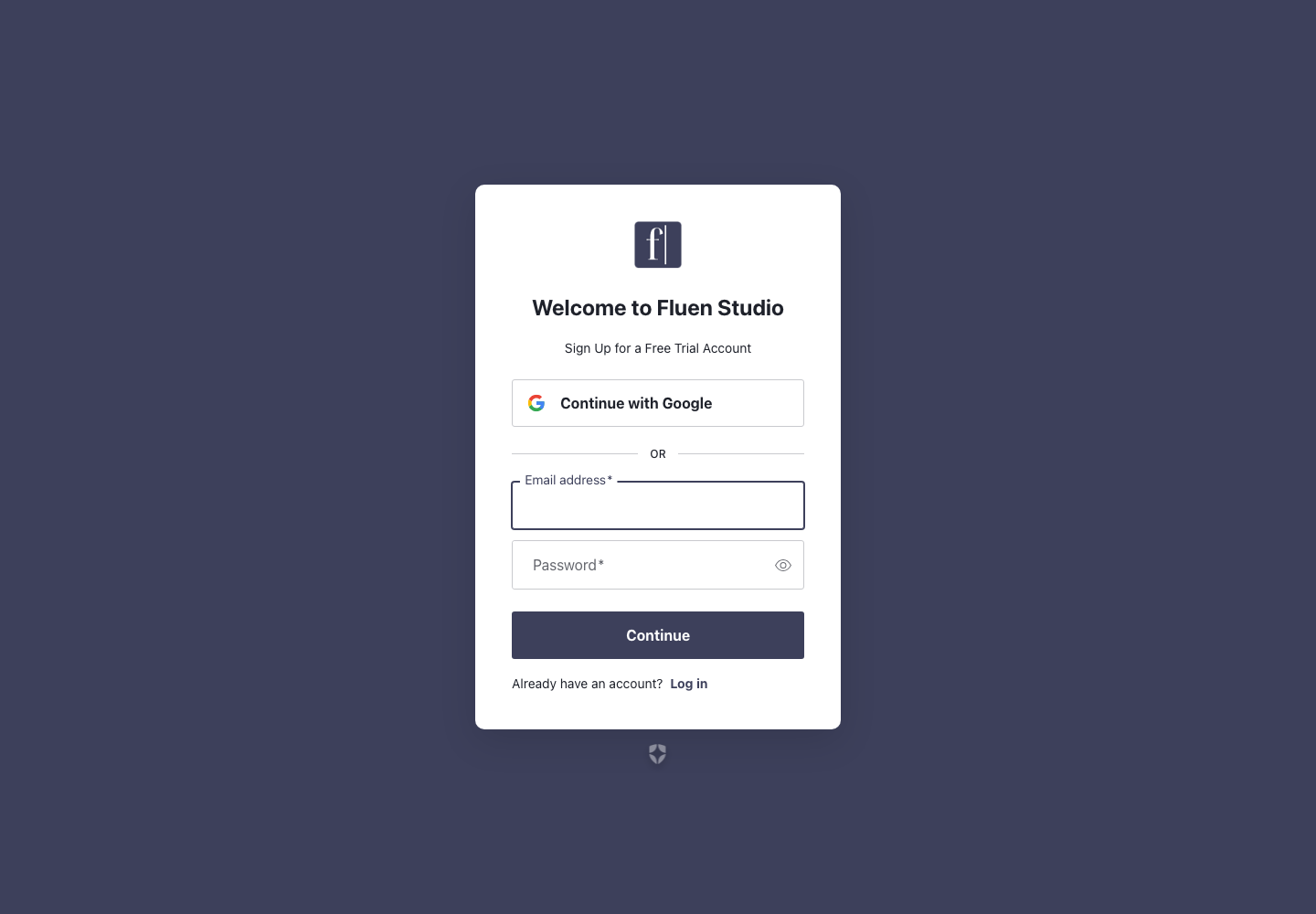
Go to studio.fluen.ai/signup. Do not click Continue with Google this time: fill in the email and password fields instead, using exactly the address of your Google account (the one shown on your My Account page). Choose a password and submit.
Check your inbox
Depending on how the sign-up went, you may receive an email asking you to confirm the address. If it arrives, click the link in it before you log in: the confirmation is what allows the new password login to be attached to your existing account. If no such email arrives within a few minutes (check the spam folder too), simply continue with the next step.
The first time you log in with the new password, you may also be asked to confirm that it belongs to your existing account, for example by signing in with Google once more. Accept it: that is what links the two ways of signing in.
Log in with your email and password
Back on studio.fluen.ai/login, enter the email and the password you just chose. You land in your existing account, with every workspace and file where it was. From now on, both Continue with Google and the email-and-password form open the same account; use whichever you prefer. The Reset password link also works from now on, because there is a password to reset.
Still locked out?
Write to [email protected] and include the email address you are trying, whether you remember ever using the Google button, and roughly when you created the account. With those three facts we can usually answer in one reply.