

When your plan's minutes run low, you can buy more in one click, or let auto top-up add them for you so your work never stops halfway. This guide covers both: how much you can buy, how you are charged, and the limits that keep automatic charges in check.
Buy minutes in one click
Click Buy Minutes
Open My Account. On the Overview page, the "Need more minutes?" card has a Buy Minutes button. The same window also opens when an upload or a translation needs more minutes than you have.
Pick an amount
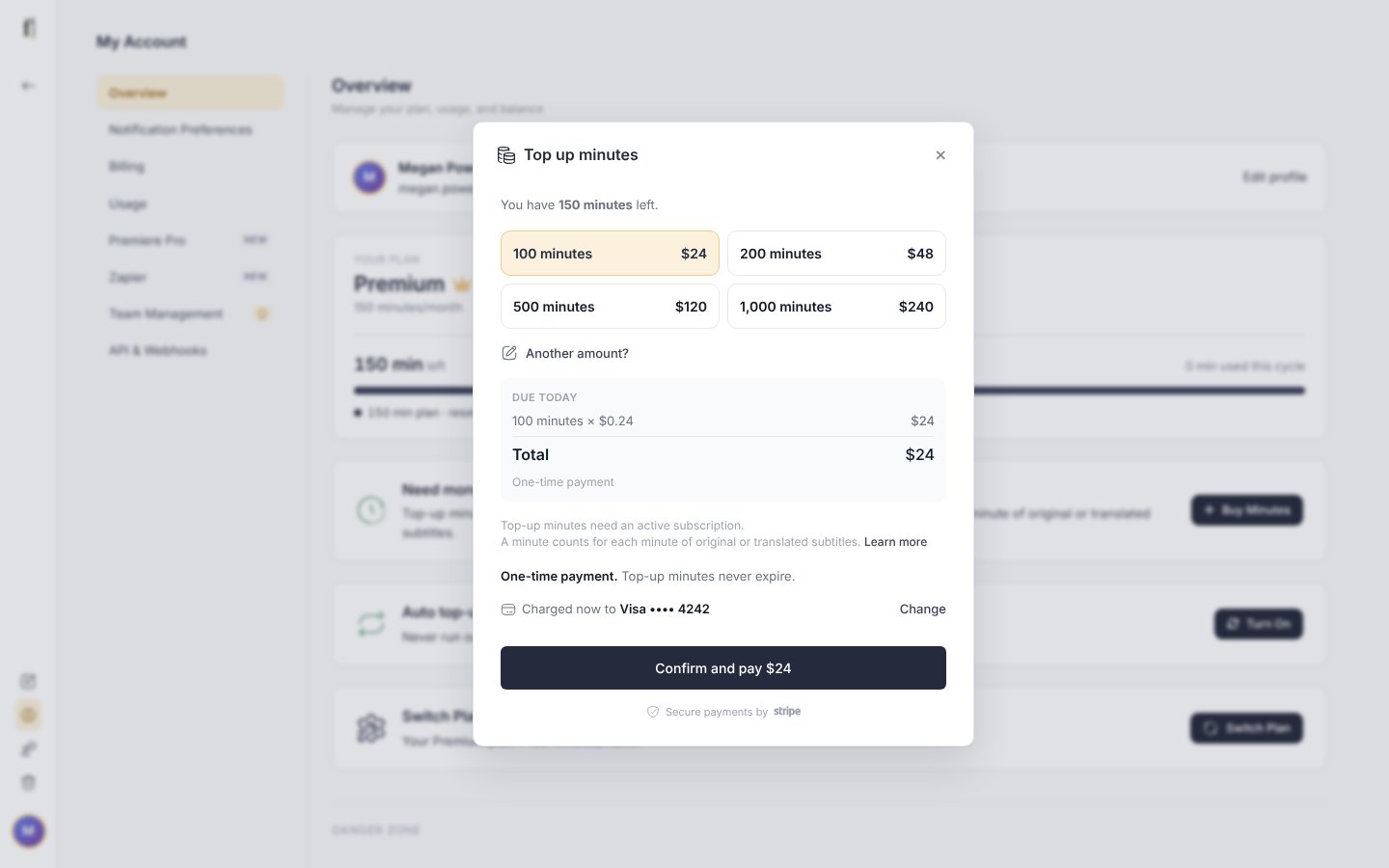
The Top up minutes window offers a few amounts with their prices. For any other amount, click Another amount? and type it: from 50 to 50,000 minutes. Prices are in the currency you pay your plan in.
Confirm and pay
The window shows the card or Link account it will be charged to, for example "Charged now to Visa •••• 4242". Click Confirm and pay: the payment goes through on the spot, with no checkout page, and the minutes are in your balance straight away. We email you a receipt.
If your bank asks you to confirm the payment, you finish it on Stripe's secure page, where you can confirm it or use another card; the minutes are added as soon as it goes through. If your payment method can't be charged directly (for example, there is none saved), the button reads Continue to checkout and you pay on a checkout page as before.
Auto top-up
Auto top-up adds minutes for you whenever your balance falls below an amount you choose. It is off until you turn it on, and you can change it or turn it off at any time.
Turn it on
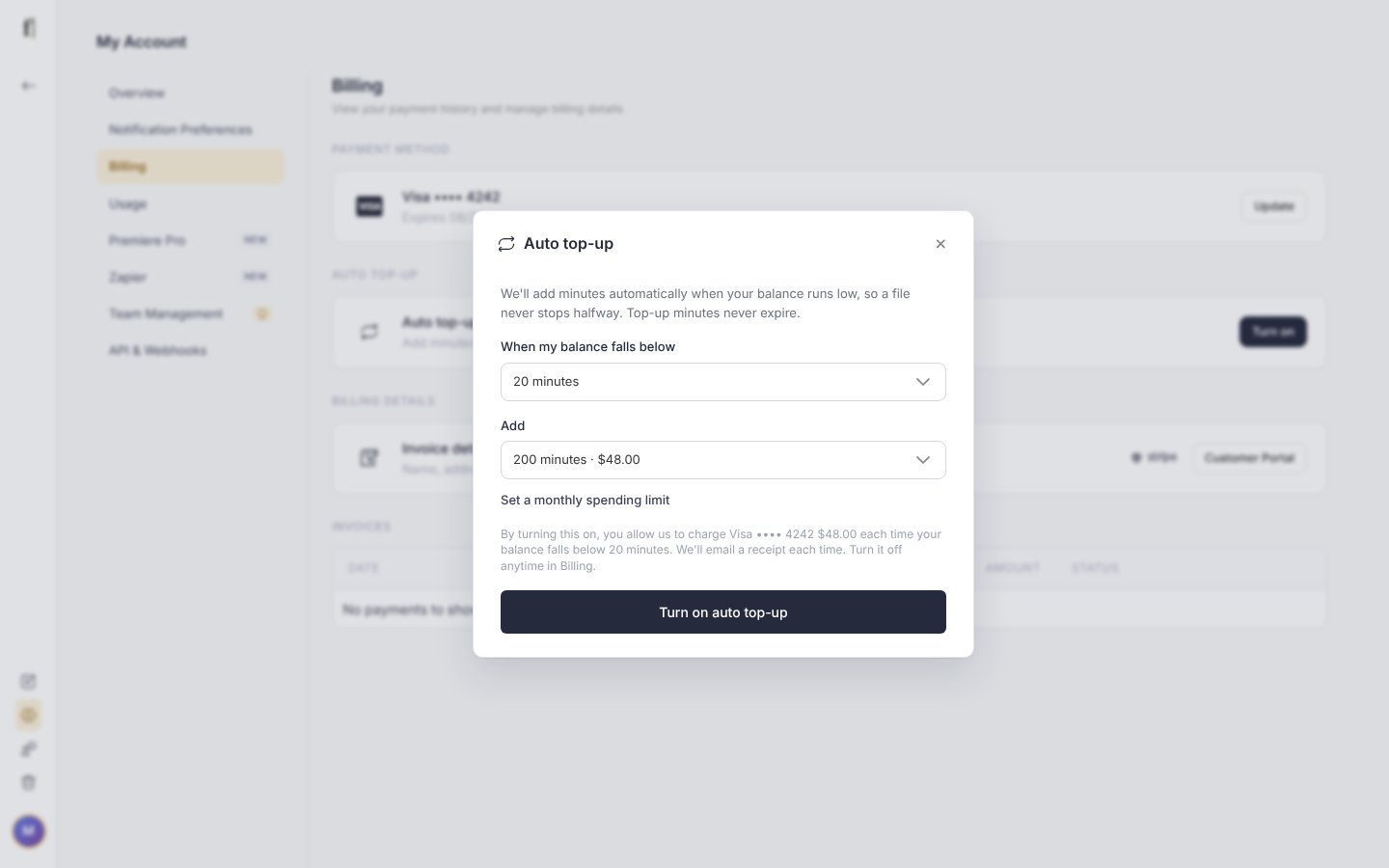
In My Account, click Turn On on the Auto top-up card of the Overview page, or in the Auto top-up section of the Billing page. After a top-up, the confirmation window also offers to Top up automatically next time. Then choose:
- When my balance falls below: the balance that sets it off, for example 20 or 50 minutes.
- Add: how many minutes to add each time, from a list or as a custom amount from 50 to 20,000. It starts at 200 minutes, or at the amount of your last top-up.
- Set a monthly spending limit (optional): the most auto top-up may spend in a calendar month. Remove limit takes it off.
Before you click Turn on auto top-up, the window spells out what you agree to, for example: "By turning this on, you allow us to charge Visa •••• 4242 $48.00 each time your balance falls below 20 minutes". We email a receipt for every automatic charge.
When auto top-up charges
- Uploads and translations in the web app. When your balance doesn't cover what you are about to start, the upload or translation window says how many minutes auto top-up will add, and it adds them in one charge before the work starts, even for a batch of files. The charge is a whole number of your chosen amount, enough to cover the work and leave you at or above your threshold afterwards.
- The API, the Premiere Pro plugin and Zapier. Work sent from these tops up as it starts, if the balance doesn't cover it.
- Whenever your balance drops below the threshold after work is charged, so the next file finds minutes waiting.
Limits that keep charges in check
- One charge at a time, and automatic charges a few seconds apart.
- At most 10 automatic charges in a day. If a day reaches that, auto top-up pauses itself; turn it back on if that was expected.
- At most 20,000 minutes a day added for uploads and translations in the web app. Past that, top up by hand to go on.
- Your monthly limit, if you set one. Once it is reached, auto top-up waits until next month, or until you raise the limit.
Team plans: collaborators and auto top-up
Work your collaborators do in your workspaces uses your balance, so it can set off your auto top-up too, and the charge always goes to your card, the owner's. If you would rather it didn't, untick Collaborators can use auto top-up in the auto top-up settings. Their work then uses only the minutes already in your balance.
Your payment method
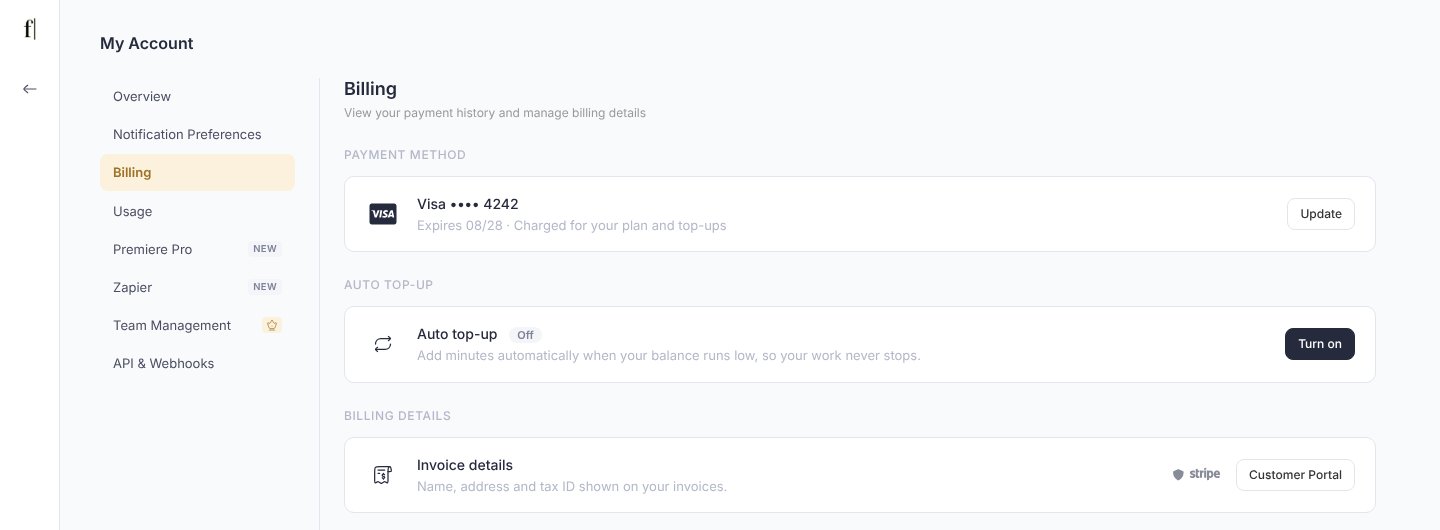
The Payment method section of the Billing page shows the card or Link account that top-ups and your plan are charged to. To change it, click Update: it opens the Customer Portal, where you can also edit your invoice details and download invoices.
Questions about a charge? Write to us at [email protected].
The Fluen support team