

A caption style decides how a track's subtitles look and move: the font, colours, outline, shadow, background and position, and, for dynamic captions, how each word appears as it is spoken. Fluen has more than 30 ready-made styles, static and animated, and you can fine-tune any of them, save it under a name for your team, and make it the style every new video starts with. Caption styles are available on every plan.
Open the Caption style panel
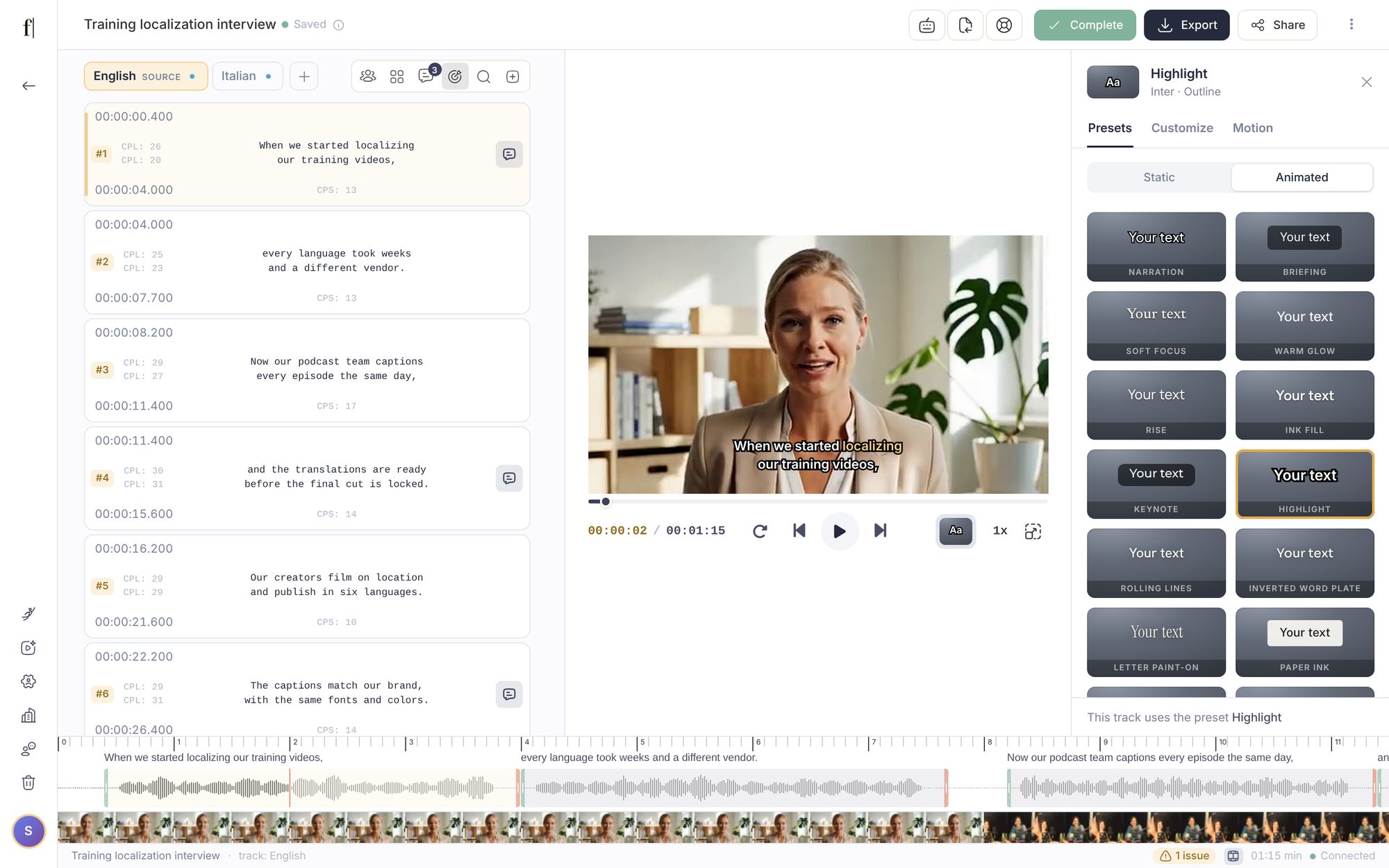
Open a video track in the editor and click Caption style in the row under the video. The button shows a small sample of the current style and its name; a dot next to the name means the style has been edited. The panel opens beside the video with three tabs: Presets, Customize and Motion. Press Esc or the cross to close it. Everything you change applies to the whole track and saves by itself.
Pick a preset
The Presets tab shows the styles as small animated cards, on two shelves:
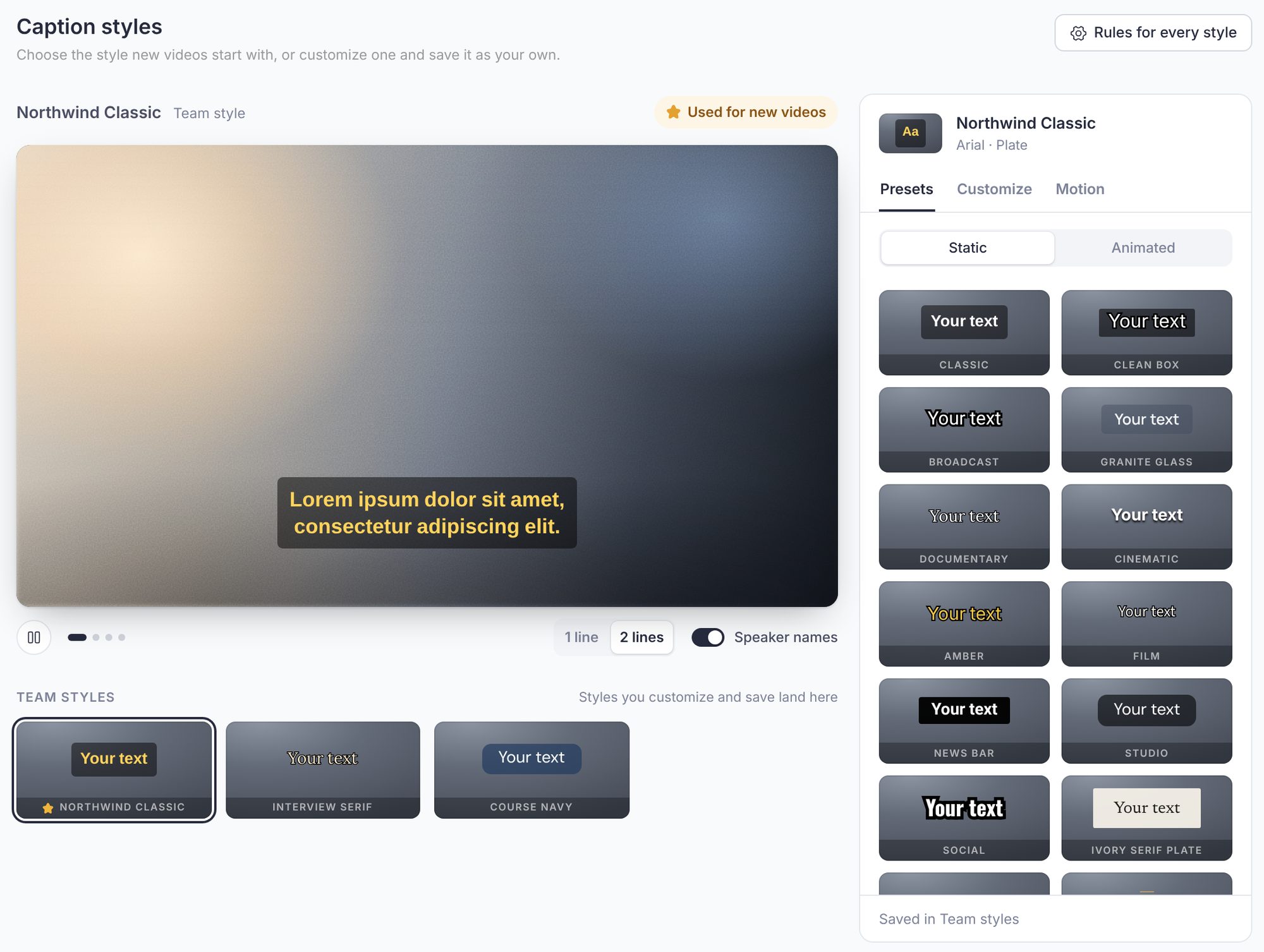
- Static: captions that appear whole, from the plain Classic to Broadcast, Documentary, Cinematic, News Bar, Social, Glass Band and more.
- Animated: dynamic captions, where words move as they are spoken. Words can light up in a colour (Highlight), sit on a moving plate (Inverted Word Plate), rise or fade into place (Rise, Soft Focus), paint on letter by letter (Letter Paint-on), grow (Scale Emphasis) or roll up line by line (Rolling Lines).
Click a card to apply it to your video; hovering does not change anything. Each preset brings its own font, colours, background and size, and is made smaller if needed so it fits your picture. Changed your mind? The bottom of the panel says which style you switched to, with an Undo button that brings back what you had. When your workspace has saved styles, a third shelf, Team or Mine, lists them first.
Fine-tune it in Customize
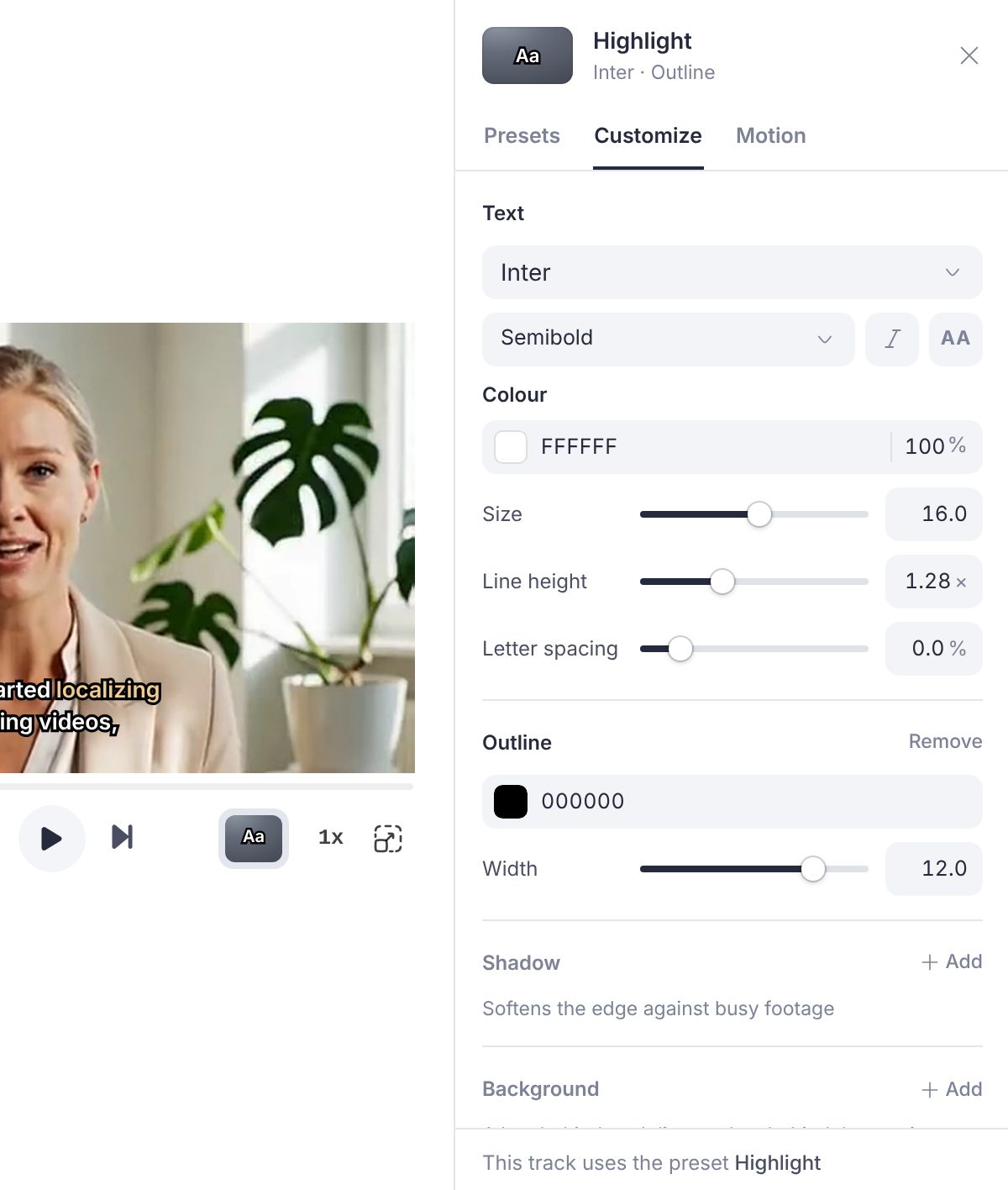
The Customize tab holds the whole look in one scroll, in sections:
- Text: font (72 to choose from, see Change the caption font), weight, italic, all caps, colour, size, line height and letter spacing.
- Outline and Shadow: a contour around the letters, and a shadow with softness, distance and an optional wide Halo for busy footage.
- Background: a box behind each line (Lines), one Plate behind the caption or a full-width Band, with corners, padding, shadow and an optional hairline edge.
- Frame: full-width effects that hold the caption: a Scrim darkening the bottom of the picture, a Band, or Letterbox bars.
- Speakers: how speaker names show when they are on (see Speaker names below).
- Position: Left, Centre or Right for the whole track. To move captions up or down, drag them on the video: see Position captions on the video.
The floating toolbar that appears when you click a subtitle on the video has the most common controls (font, size, colour and text alignment). At its end, the style's name opens the list of styles, and the Customize the caption style button opens this tab directly.
Set how words move in Motion
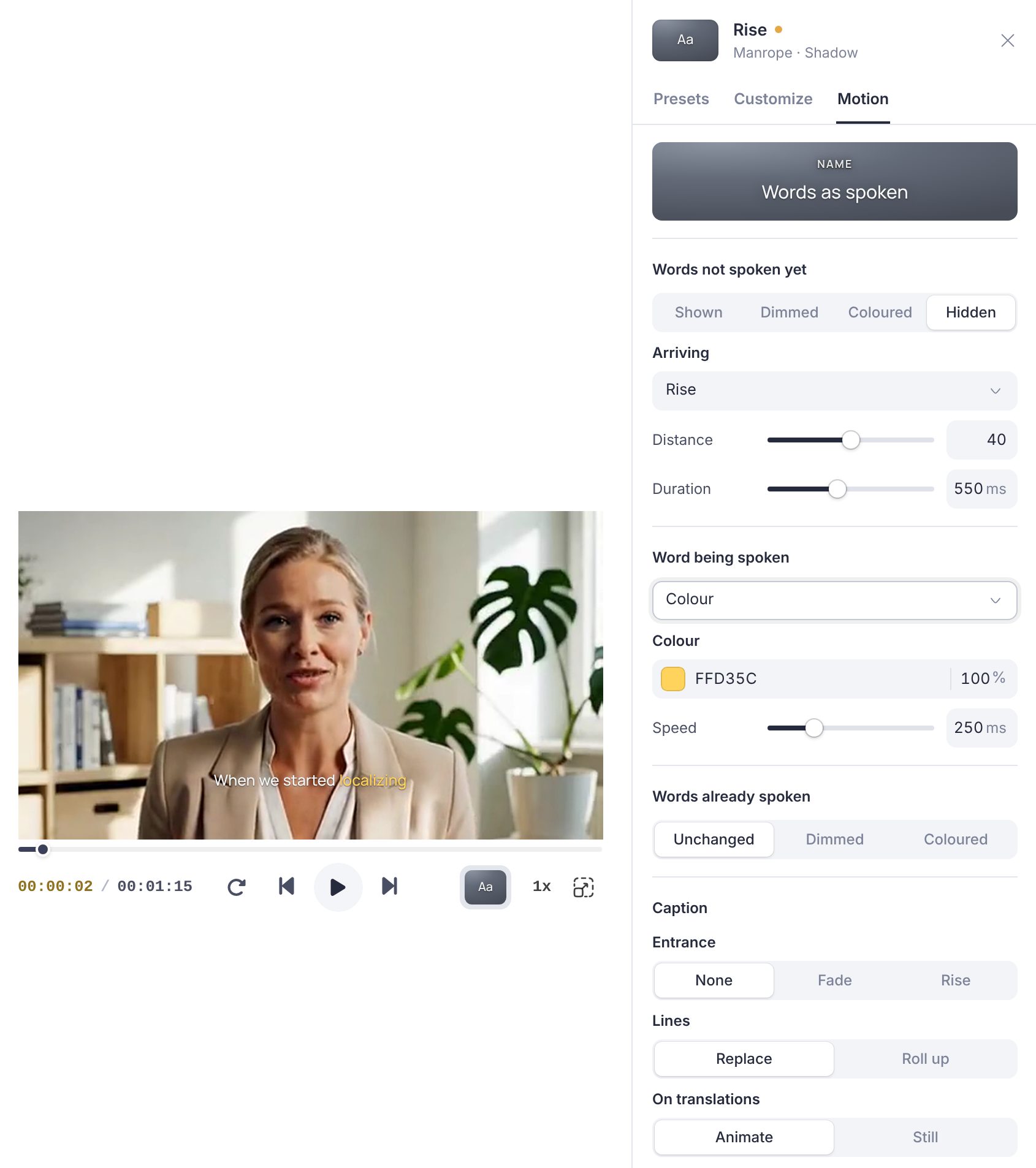
The Motion tab starts with a looping sample, then three groups of settings:
- Words not spoken yet: shown, dimmed, in a colour, or hidden until they are spoken. Hidden words can arrive by fading in, coming out of focus, rising, sliding in, painting on, or letter by letter.
- Word being spoken: no mark, a colour, a word plate, an underline, scaling up, a lift or a glow, with a speed for how quickly it changes.
- Words already spoken: unchanged, dimmed or kept in a colour.
For the caption as a whole, Entrance sets whether it appears at once, fades or rises; Lines chooses whether each caption replaces the last or the previous line rolls up; and On translations chooses Animate or Still. Any static preset becomes a dynamic one as soon as you set a word effect here.
Save it as your own style
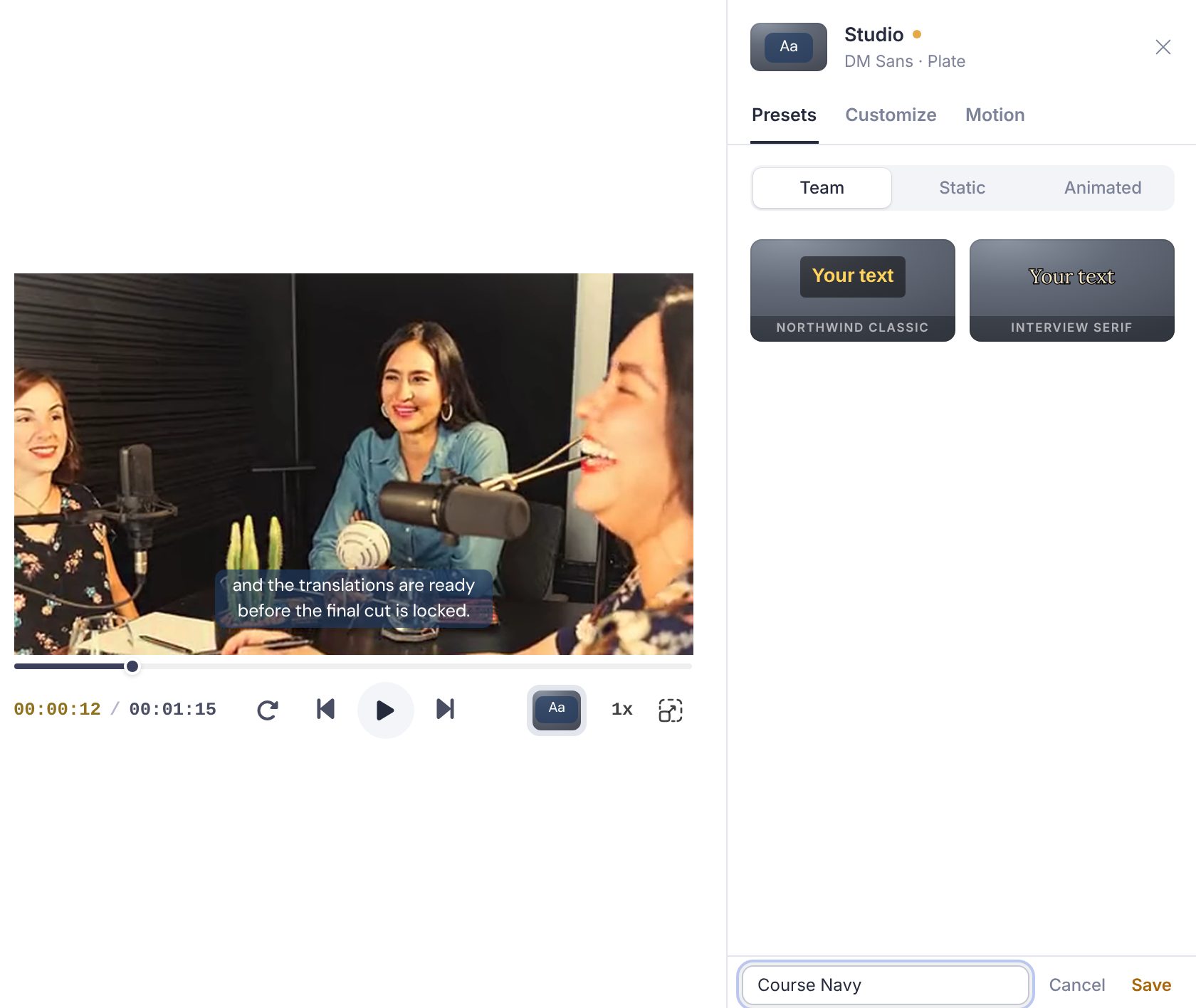
As soon as you change a preset, the bottom of the panel reads Edited from and the preset's name, with a Save… button. Click it, type a name and press Save. The style is stored with the workspace and appears on the Team shelf of the Presets tab (or Mine, in your personal workspace), so in a shared workspace everyone can apply it to their own videos.
Applying a saved style and changing it again offers Update, which saves the change into the style for everyone, next to Save… for a new one. A saved style can also be renamed or deleted from the same place. Deleting a saved style does not change the videos that use it: they keep their own copy. Saving, updating and deleting styles is for members who can edit in that workspace.
Choose the style for new videos
In the library, open Workspace Settings and choose Caption styles. The page shows the selected style playing over a sample picture, with switches for one or two lines and for speaker names, and your saved styles below it. The Caption style panel on the right works as in the editor: pick a preset, customize it, and Save as new…. Select a style and click Use for new videos: a star marks it, and every video uploaded to this workspace from then on starts with it. Existing videos keep their style.
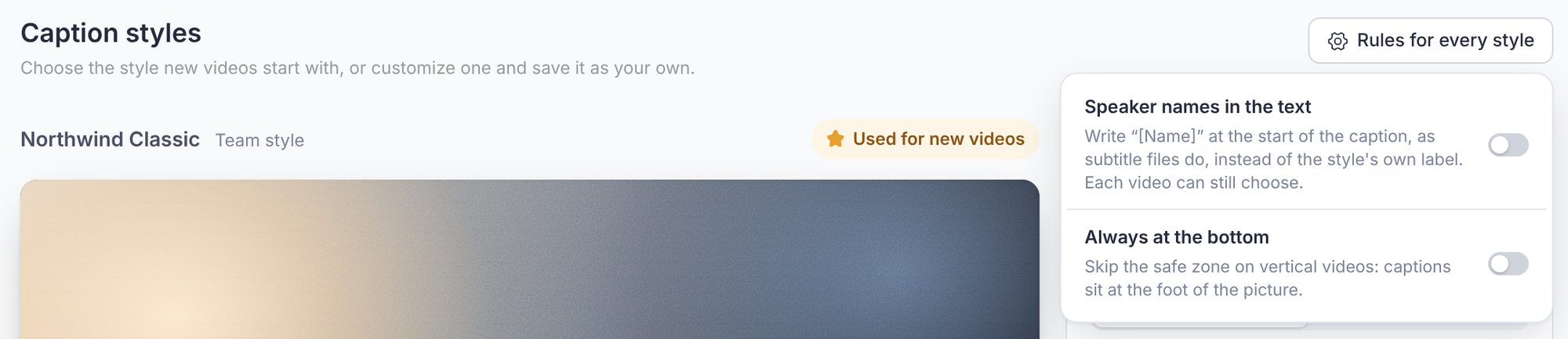
The Rules for every style button at the top holds two workspace-wide switches:
- Speaker names in the text: writes
[Name]at the start of the caption, as subtitle files do, instead of the style's own label. Each video can still choose. - Always at the bottom: skips the social-media safe zone on vertical videos, so captions sit at the foot of the picture.
Translations
A translation follows the style of its caption track: restyle the captions and every translation that follows them changes too. The bottom of the panel says so on a translation ("Uses the English captions' style", for example). Pick or change a style on the translation itself and it gets one of its own; Use followed by the caption language's name, at the bottom of the panel, makes it follow the captions again.
Speaker names
When speaker labels are on for a track, every style shows the speaker's name as a label drawn in that style, apart from the text: above or below the caption, as a tab on its plate, or in a panel beside it. In Customize, Speakers, you can switch between Styled label and [Name] in text, move the label, and show it When it changes or on Every caption. Subtitle files always carry the name as [Name] text. See Speaker identification.
In exports and on share links
- Burned-in video looks exactly like the editor, animations included, at every resolution up to 4K. One exception for now: Blur behind, the frosted effect on some plates and frames, is not in burned-in exports yet; the plate or band is still there, without the blur. Burned-in export is available on paid plans. See Export video with burned-in subtitles.
- Share and review links show the track in its caption style, as in the editor.
- Subtitle files such as SRT and VTT carry text and timing only, so the player that shows them decides the look.
- Videos styled with the earlier presets keep their look. The button under the video names the old preset they still match, or says "Custom style".