

Two different settings decide how much text your viewers see at once. Size is how big the letters are. Characters per line and max lines decide how the text is split into subtitles. This guide shows where each one lives, what happens when you change it on an existing track, and how the editor points you to the subtitles that are too long or too fast to read.
Change the font size
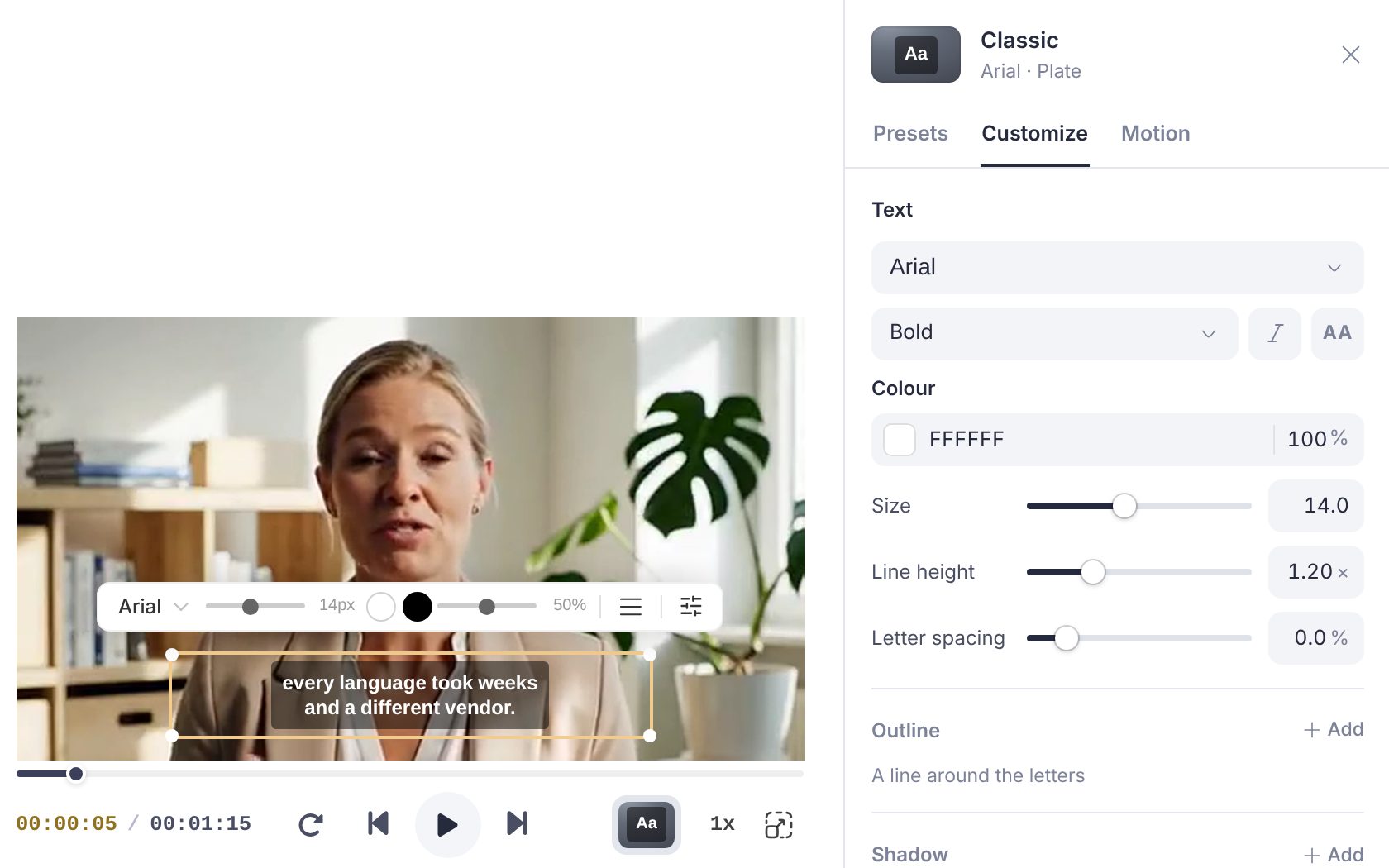
Click Caption style under the video, open the Customize tab and move the Size slider in the Text section, from 5 to 26. For a quick change, click a subtitle on the video: the floating toolbar has the same size slider, and dragging one of the four corner handles of the subtitle does the same thing. Size is on the same scale in the editor and in the burned-in export.
A new track starts at a size that suits the shape of the video, smaller on tall, narrow frames. Every preset in the Caption style panel also sets its own size, and makes it smaller if needed so the captions fit your picture, so check the size again after switching presets.
Change characters per line or max lines on an existing track
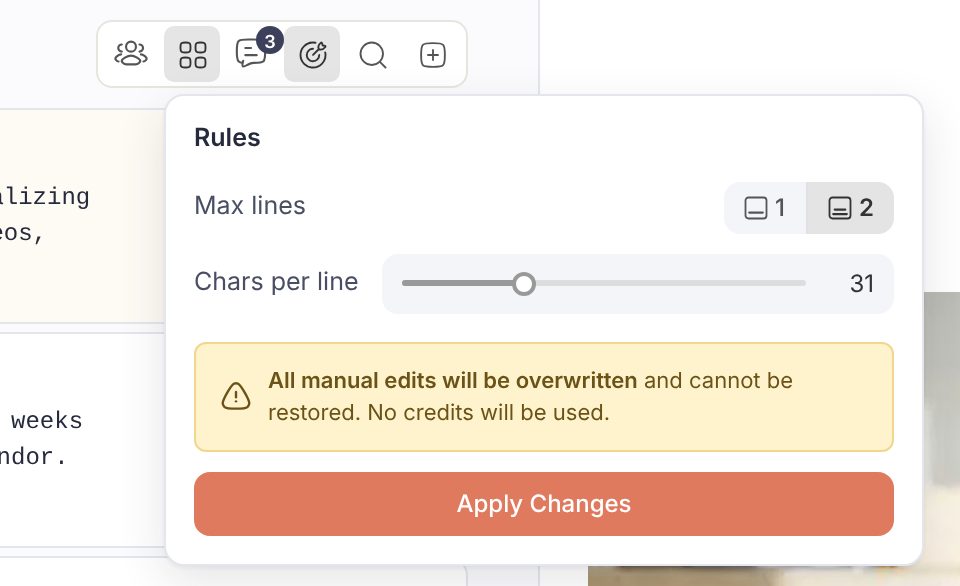
Click Rules in the toolbar above the subtitle list (formerly called Layout). The popover has two controls: Max lines (1 or 2) and a Chars per line slider. Its range scales with the language's default and the video's aspect ratio, from a quarter of the default up to 175% of it.
As soon as you change a value, a warning appears: All manual edits will be overwritten and cannot be restored. No credits will be used. Click Apply Changes and Fluen re-splits the whole track with the new settings in a few seconds; the popover shows "Reprocessing..." while it works. If you have already corrected text by hand, export a copy first, or make the change before you start editing.
Set them before uploading
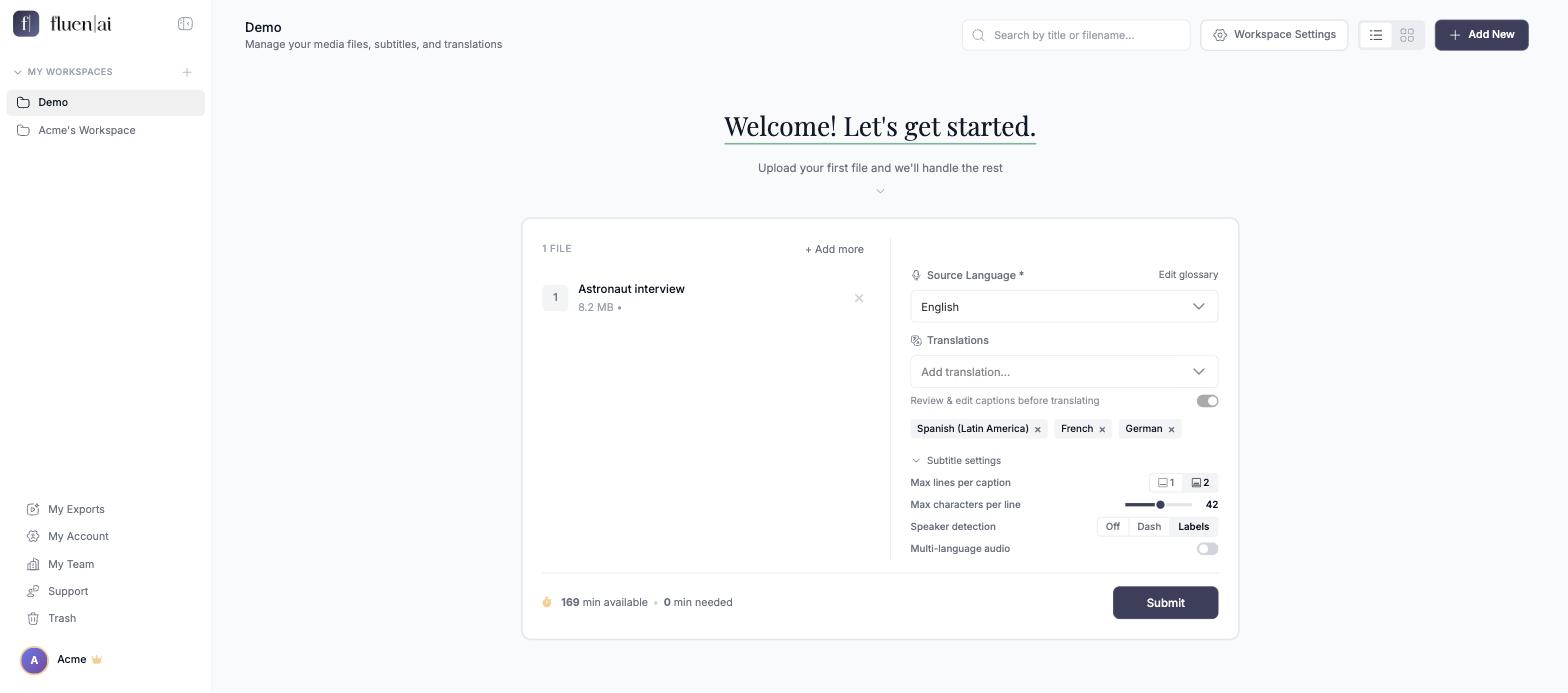
On the upload screen, expand Subtitle settings: Max lines per caption (1 or 2) and Max characters per line (20 to 60). The default is 42 for English on a landscape video, 32 on tall portrait, 30 on square and 26 on full-height portrait; other languages have their own defaults, based on the conventions of the major style guides. For translations that must follow a client's fixed value, add a per-language override in Workspace Settings under Subtitle Limits: see Set your default subtitle specifications.
The issues list
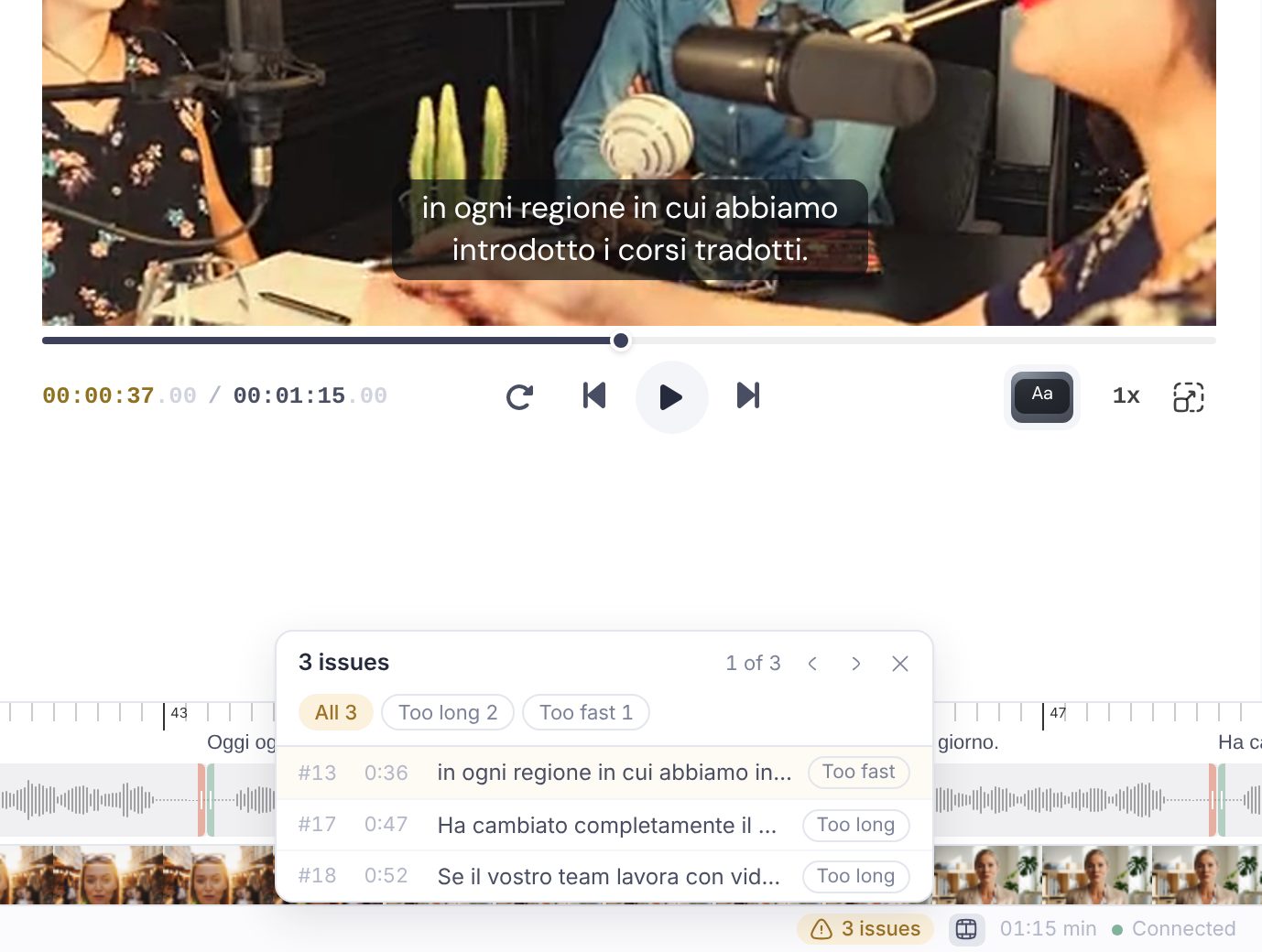
When some subtitles break the limits, a counter such as 4 issues appears in the status bar at the bottom of the editor. Click it to open the list: every subtitle that is over the line-length limit (Too long) or, on translations, faster than the comfortable reading speed (Too fast), in the order they play. When both kinds are present, filters at the top switch between All, Too long and Too fast.
- Click a row to jump to that subtitle. The list stays open while you edit, and a row drops off as soon as its subtitle is fixed.
- Press F8 for the next issue and Shift+F8 for the previous one, whether the list is open or not.
- If most of the issues are lines that are too long, the track was probably split for a different line length. The list then suggests opening Rules, which re-splits the whole track in one go.
Reading the warnings
- Red edges on a subtitle in the video. The text is wider than the video frame at its current size and position, and would be cut off in a burned-in export. Lower the characters per line, reduce the size, or move the caption: see Position captions on the video.
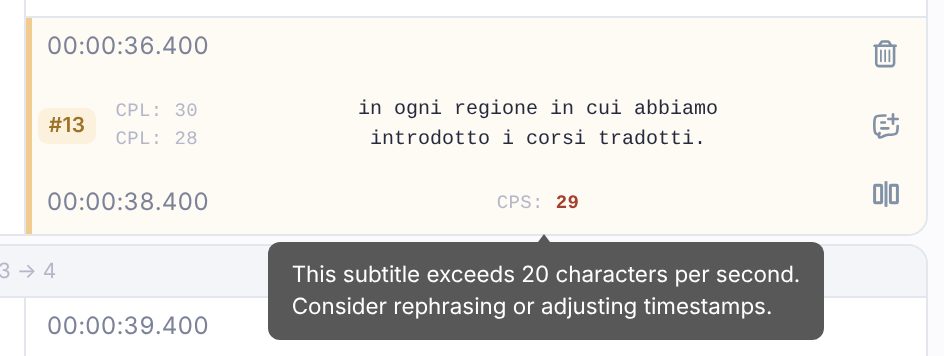
- The CPL and CPS numbers on a subtitle. Every subtitle in the list shows the length of its longest line (CPL) and its reading speed in characters per second (CPS). A line over the limit is flagged on any track. On translation tracks, a warning also appears when a subtitle is faster than the comfortable pace for that language (20 characters per second for most languages, lower for some); captions are the source, so their reading speed is not flagged. The fix is to rephrase, or give the subtitle more time on the timeline. Translations already go through AI Wordsmith, which rephrases or condenses most of the long lines automatically; the warning flags what is left.
Which one should I change?
| If... | Change |
|---|---|
| The text is hard to read on a phone | Size (bigger), or a preset with a background plate |
| Subtitles cover too much of the picture | Max lines to 1, or a smaller size |
| Lines look too long for the frame, or show red edges | Chars per line (lower) |
| A client's style guide sets a line length | Chars per line on upload, or a Subtitle Limits override for that language |
| Subtitles flash by too quickly | Nothing in Rules: extend the subtitle on the timeline or shorten the text |