

A burned-in export renders the subtitles into the picture, so they play everywhere, in any player, in the track's caption style, animated captions included, exactly as you see them in the editor. This guide walks through the export dialog, the resolution choices, how long it takes, and where the finished file ends up.
Open the export menu
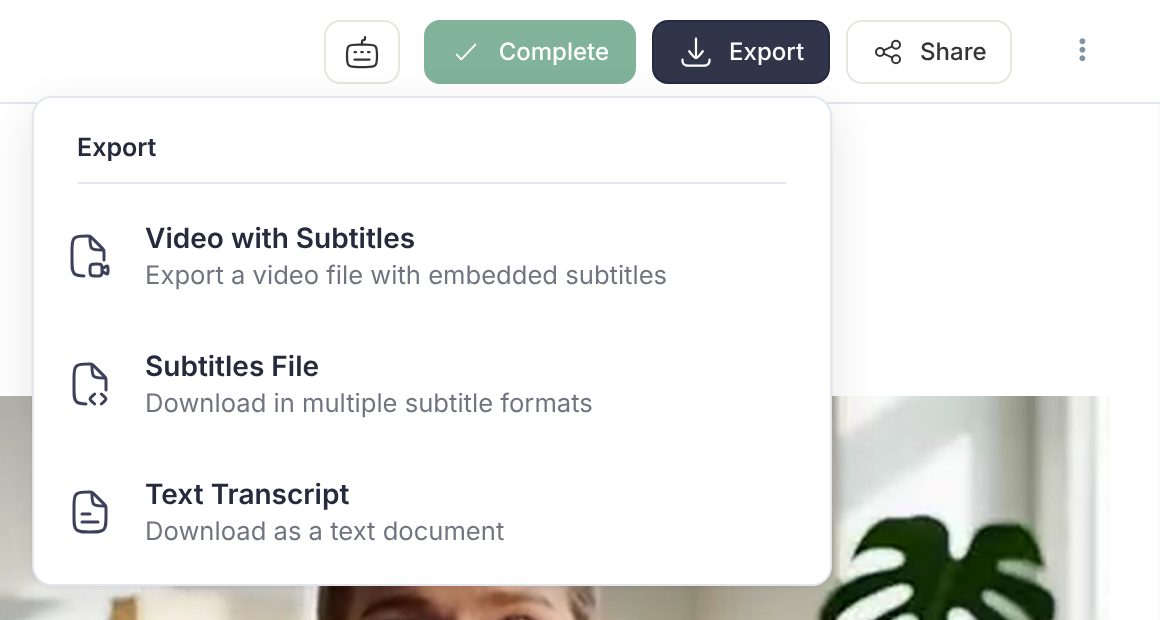
Open the track in the editor (captions or a translation) and click the export button in the top right. Choose Video with Subtitles. The other two entries, Subtitles File and Text Transcript, produce text files instead of video.
Choose the resolution
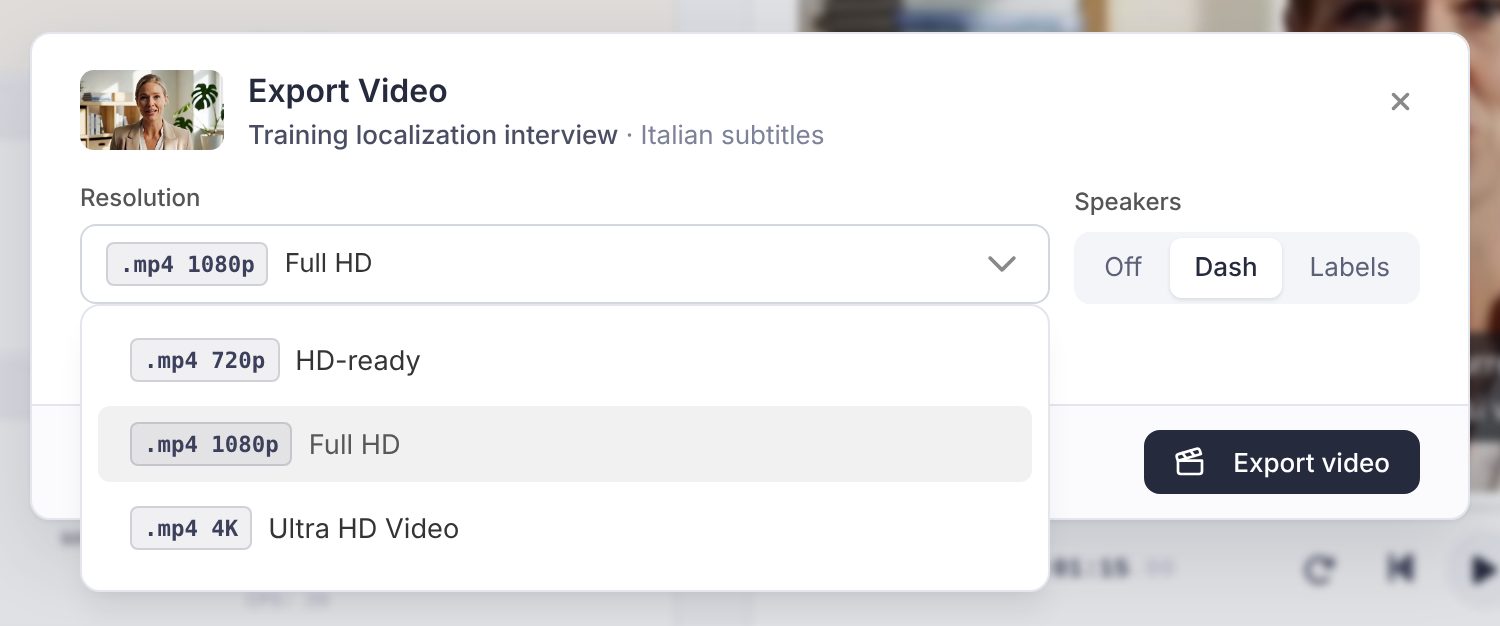
The Export Video dialog lists the resolutions available for this file under Resolution: Original Resolution, HD-ready (720p), Full HD (1080p) and Ultra HD Video (4K). Fluen never upscales, so only options up to the source resolution are offered, and very long files have fewer options (4K and Original are not offered for 4K sources over 1h30, and 1080p and above are not offered for HD sources over 3h30). If speaker detection is on for the track, a Speakers control lets you render the labels, dashes, or a clean version.
Launch the export
Click Export video. The dialog shows the progress and a time estimate. You can close it and keep working: the export continues in the background and we email you when it is ready (the "Burn-in Complete" notification). If the queue is busy you will see "Busier than usual. Your export has been queued and will start shortly."
Download the file
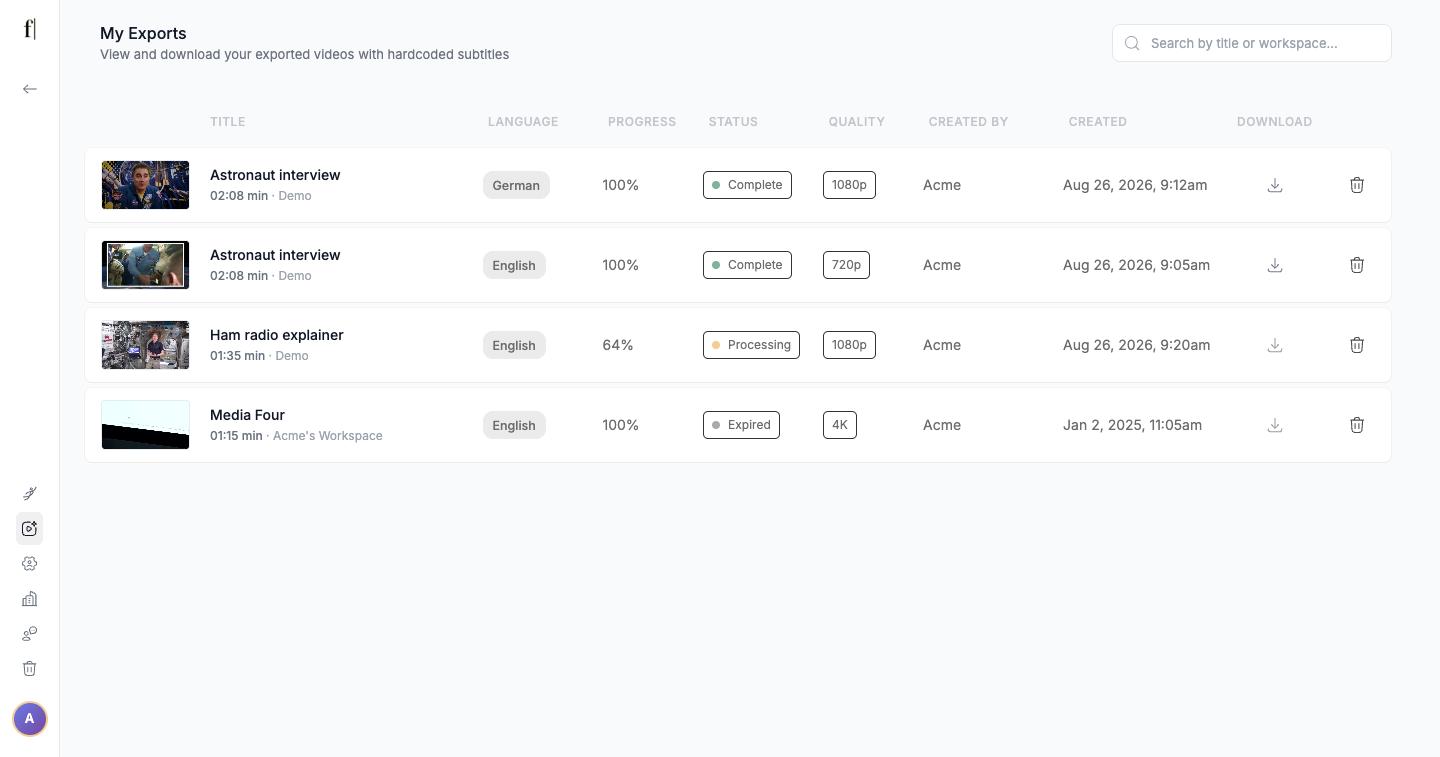
When it is complete, the same dialog shows a Download button. Later, find every export under My Exports in the left sidebar, with its language, quality and date. Exported videos are kept for 90 days; download anything you want to keep before then.
What you get
- The subtitles look exactly as in the editor, at every resolution up to 4K: the track's caption style with its font, size, colours, outline, shadow, background plate or frame, speaker labels and position. Animated styles stay animated, word by word, just as they play in the editor. Vietnamese, Arabic, Hebrew, Thai, Cyrillic, Greek and East Asian scripts all render correctly.
- One exception for now: Blur behind, the frosted-glass effect on some plates and frames, is not in burned-in exports yet. The plate or band is still there, without the blur.
- An MP4 file, sized to the video's own aspect ratio: vertical stays vertical, square stays square.
- No watermark. (The "FREE TRIAL" mark you see in the editor on a Free account is on the preview only.)
How long it takes
Rendering runs at roughly a quarter to half of the video's duration: a 20-minute file is usually ready in 5 to 10 minutes. Higher source bitrates and 4K take longer; 720p is fastest. Launching the same export again after a failure is one click (Launch Again), and if an export is already running the dialog shows its progress instead of starting another.
Requirements
- A paid plan. On the Free plan the dialog offers an upgrade instead of the export.
- The original video must still be on our servers. Exports are not possible once the media has expired (90 days on Premium, 180 days on Team, one year on Enterprise), or for files older than six months.
- Audio-only files have no video to burn into; export a subtitle file or a transcript instead.