

Comments let you leave notes on a subtitle instead of trading timecodes over email. You comment in the editor, and anyone you send a share link to can comment without a Fluen account. Team plans add a formal review that ends in an approval.
Turn commenting on
On a Team workspace the Comments button sits in the toolbar above the subtitle list from the start. On Free and Premium it stays hidden until the track has someone to comment on it, so if you cannot find it, that is why.
To bring it out, open the Share dialog and set Anyone with the link to Can comment. The button appears straight away, and anyone who opens that link can type their name and leave notes on any subtitle, with no account and no sign-up.
Set the link back to Can view and new comments stop, though the ones already left stay put. A track that has comments keeps the button whatever you do with the link afterwards. The link itself is covered in Share a track for review.
Comment on a subtitle
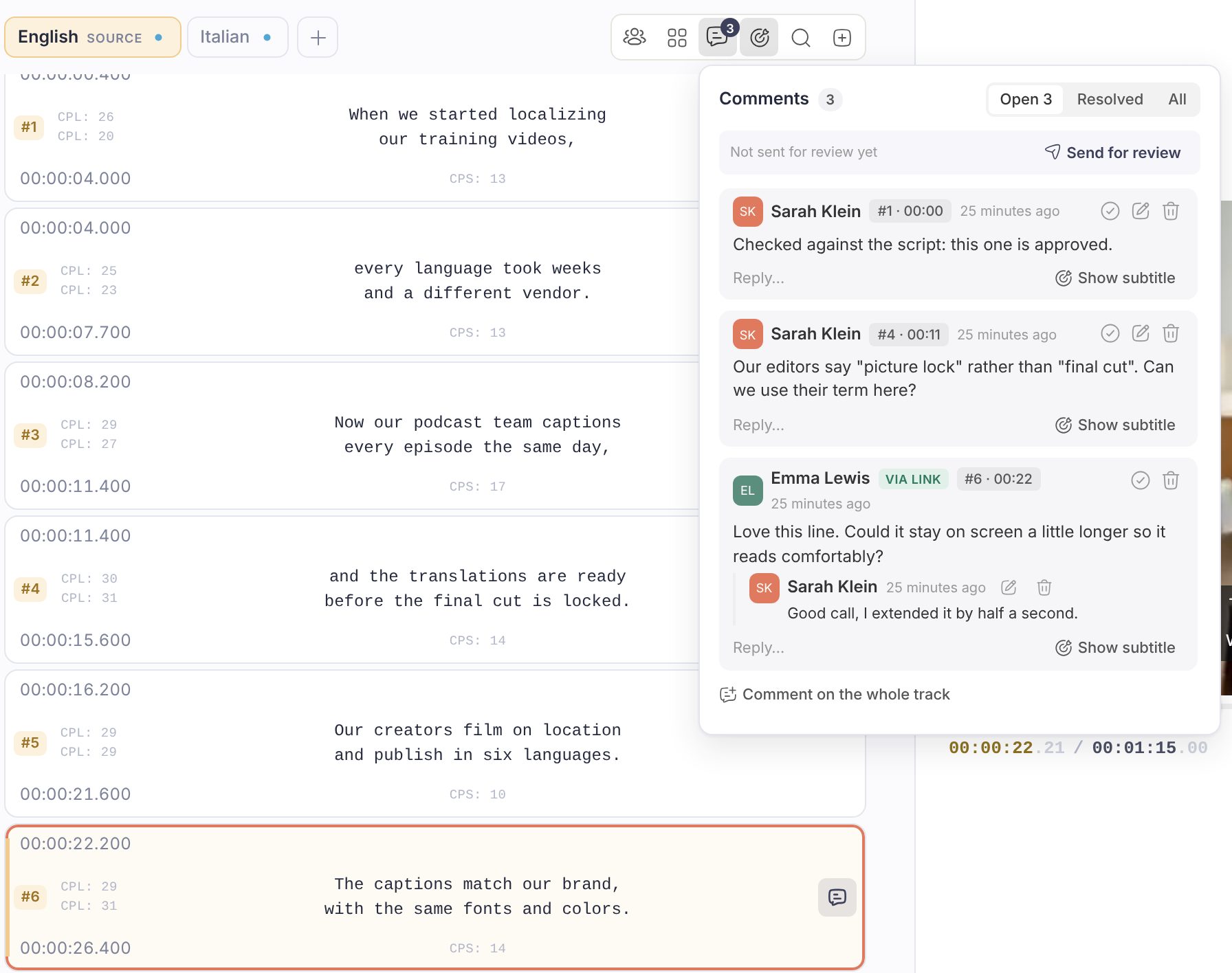
Click Comments and the panel opens beside the subtitle list. Select the subtitle you want to talk about and write your note: it is pinned there and a badge appears on the row, so the conversation stays beside the text it is about. If your point is about the whole video rather than one line, use the link under the list.
Reply, then resolve
Every comment starts a thread. Reply underneath it, and once the change is made click Resolve: the thread leaves the working list without being deleted, and the filter above the list switches between Open, Resolved and All.
Comments left through a share link arrive in the same panel, under the name the person typed, so you answer a client exactly as you would a colleague.
They also survive editing: retime a subtitle, split it, or reprocess the track's layout and the comment follows it. Only a subtitle rewritten past recognition breaks the link, and even then the comment is kept and marked as sitting on a subtitle that has changed.
Email notifications
Fluen does not email you once per comment. It waits until a track has gone quiet and then sends a single email covering the whole batch, so a reviewer who leaves twenty notes produces one message. Replies notify everyone else in that thread, except anonymous share-link commenters, who leave no address and hear nothing back.
What the Team plan adds
Everything above works on any plan. Team plans add the formal half of the workflow: named reviewers, approvals held per language, wording a reviewer can suggest directly, and notes only your own team can see.
Send a track for review
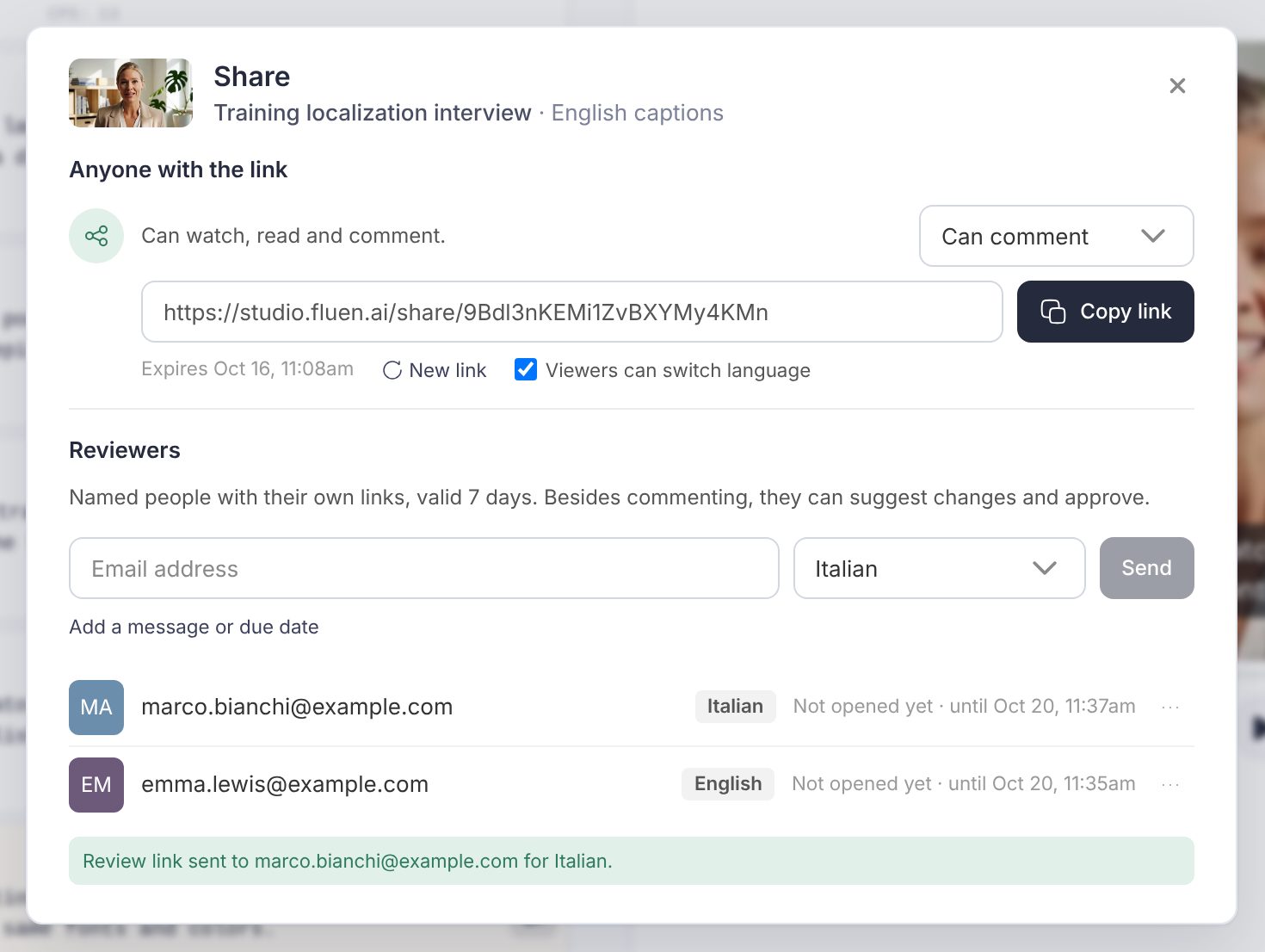
In the Comments panel click Send for review, enter the reviewer's email address, choose the language they are reviewing, and add a message if you want one. Click Send and the track's status becomes In review.
Each reviewer gets a private link of their own, valid for 7 days and needing no Fluen account. Ask one person for several languages in a single send and they still receive one email, switching between their languages on the review page. Each language takes one reviewer per request.
What the reviewer can do
- Comment on any subtitle, or on the track as a whole.
- Suggest a change: propose replacement wording, pre-filled with the current text. You apply it with a single Accept, so a reviewer who cannot use the editor can still fix a line properly.
- Approve or Request changes, with a closing message.
Their comments reach you ahead of the verdict, so you read the notes before you see the decision.
Check approvals and ask again after edits
Each language carries its own status, In review, Changes requested or Approved, with the reviewer's name against it. An approval does not lock anything, so you can keep working on a track that has been signed off.
Edit the content afterwards and Fluen marks the approval out of date: the button becomes Request re-approval, so a sign-off never quietly covers subtitles the reviewer has not seen. Style-only changes, such as a font or a colour, leave it alone. From the reviewer list you can also Re-send email, Copy link, or Close link to end someone's access early.
Internal notes your client cannot see
Mark a comment Internal and only your workspace sees it, in the editor: it never reaches a share link or a reviewer's link. Use it for what you say to your own team, like "check this name against the brief", without the client reading over your shoulder.