

If you or a client polished the subtitles outside Fluen, you can bring the corrected .srt file back and replace the caption track with it, then translate from your version. You can do it for one video from the editor, or for a whole batch from the library, where Fluen matches each file to its video by name. Importing your own subtitles is available on paid plans.
One video, from the editor
Open the caption track
Open the video's caption track in the editor. In the top bar, click the import icon (its tooltip reads Import SRT). You can also drag a single .srt file straight onto the editor.
Choose the file and decide about translations
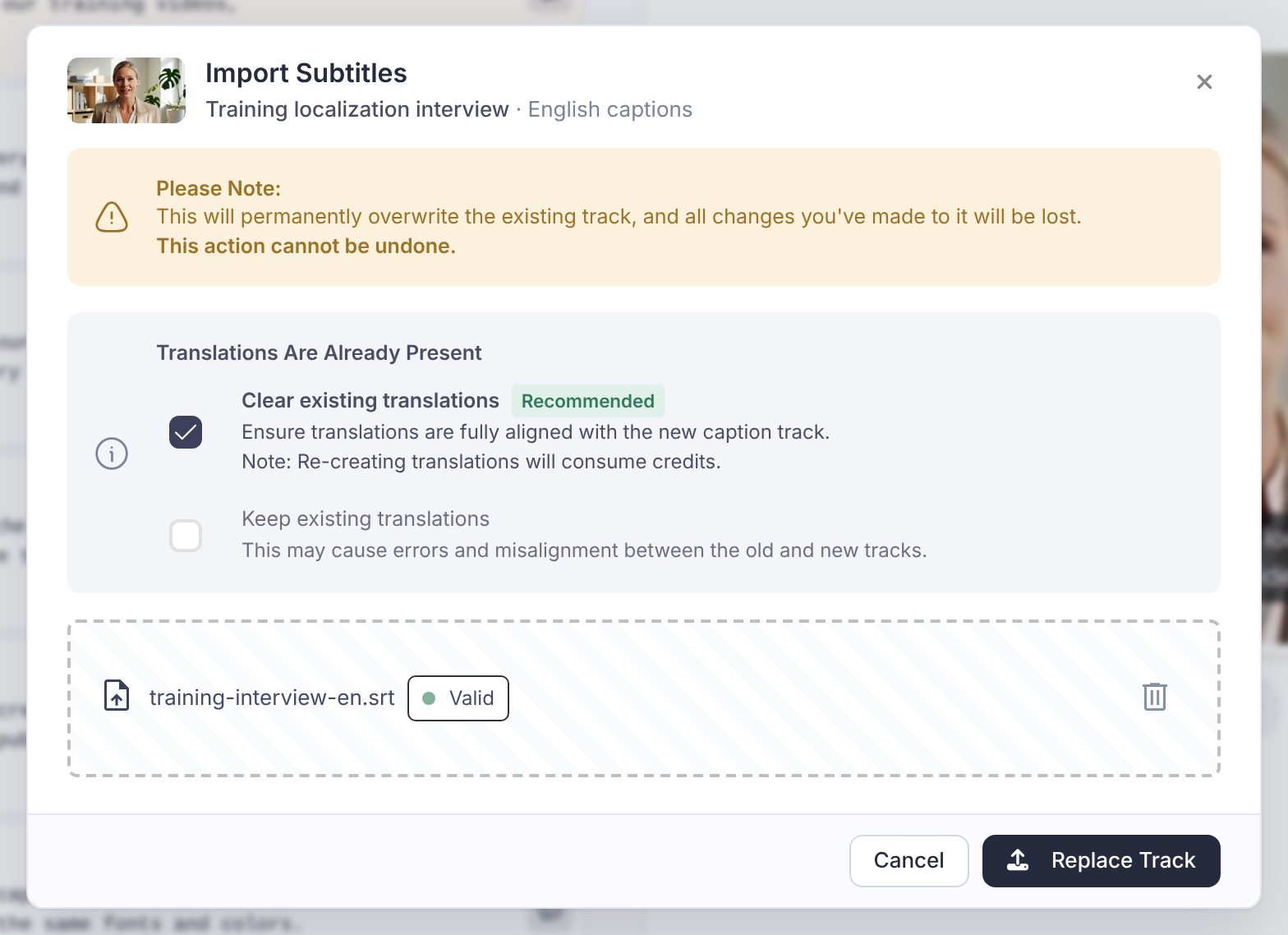
The Import Subtitles dialog asks for the file: click to choose it or drop it in. Fluen checks it ("Validating...") and tells you if something is wrong with it. If the video already has translations, the dialog asks what to do with them:
- Clear existing translations (recommended): the translations are made again from your imported captions, so they match them exactly. Re-creating translations uses credits.
- Keep them as they are, if they were already corrected separately.
Replace the track
Click Replace Track. The editor reloads with your subtitles, and the caption track is In Review. Check them, then click Complete & Translate as usual if you want translations made from them.
Many videos at once, from the library
Drop the files on the library, or start from a selection
Name each .srt file after its video: the file name without the extension should match the video's title in Fluen, which is the name of the file you uploaded. A language tag at the end, as in Episode 1.en_US.srt, is understood too. Then either:
- drag all the .srt files onto the workspace's media library: Fluen matches them against every video in the workspace; or
- tick the videos in the library, click Import subtitles in the bar that appears, and choose the files: Fluen matches them against the selected videos only.
Check the matches
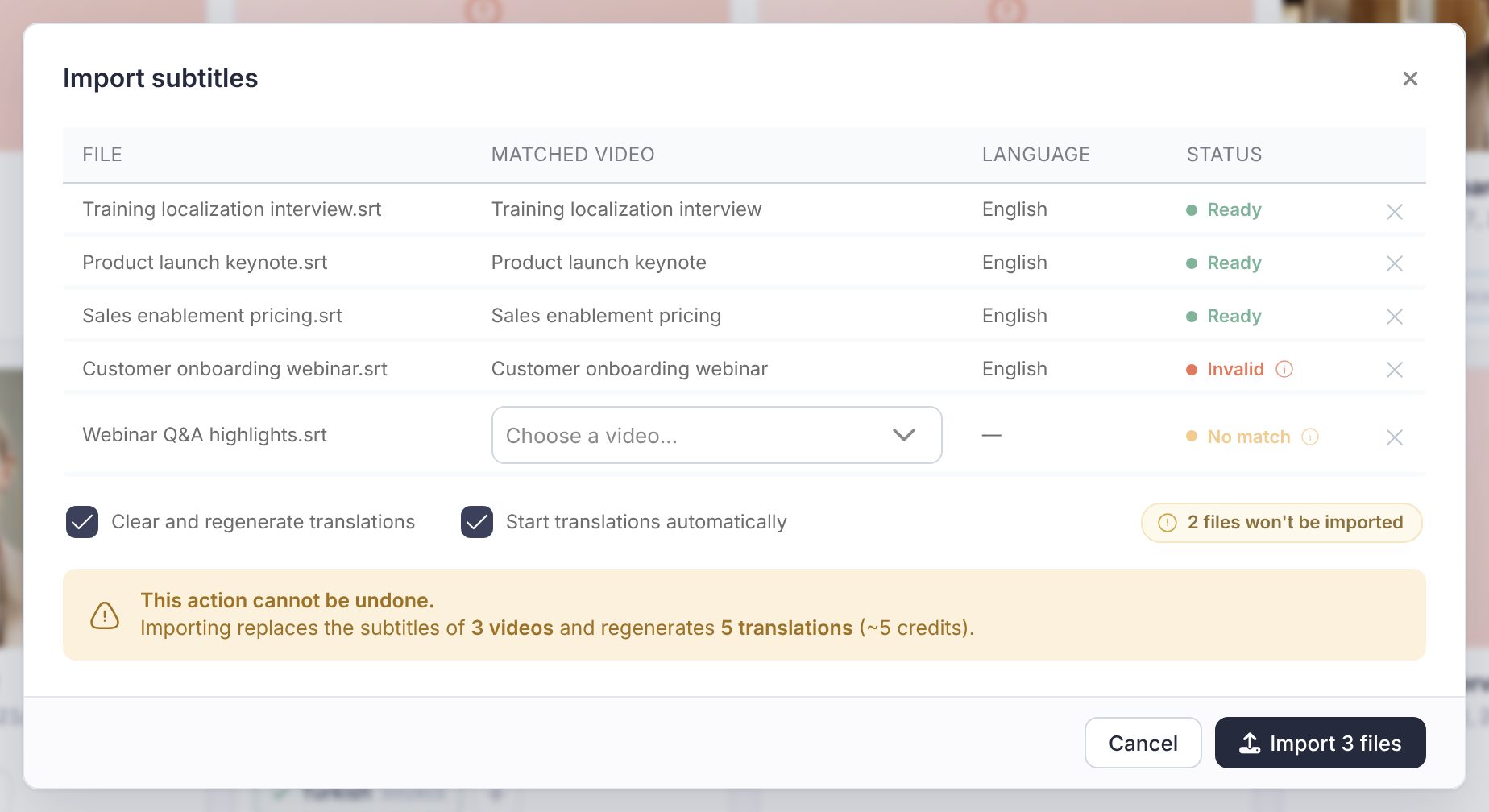
The Import subtitles window lists every file with the Matched video, its Language and a Status. Hover a status to see the reason behind it.
| Status | What it means |
|---|---|
| Ready | Matched and checked: this file will be imported. |
| Checking… | Fluen is still validating the file against its video. |
| Invalid | The file has a problem; the tooltip says what it is. |
| No match | No video has this name. Pick one from the menu, or the file is skipped. |
| Pick video | Several videos share this name. Pick the right one. |
| Conflict | Two of your files match the same video. Remove one. |
| Wrong language | The language tag in the file name is not the video's caption language. Pick the video by hand if you really mean it. |
| Can't import | The video cannot take an import, for example because it has expired or has more than one source language. |
Below the list, Clear and regenerate translations remakes each video's translations from the imported captions, and Start translations automatically starts them right away. The summary above the button says how many videos will change and roughly how many credits the translations will use.
Import
Click Import (the button shows how many files are ready). Fluen imports the files and reports back on each video, including whether its translations started, were queued to start shortly, or could not start (you can then start them from the video itself). Nothing changes on a video whose import failed.
Good to know
- The import keeps your text and timings as they are in the file. Fluen does not re-split it, so check the issues counter in the editor for lines that are too long.
- To fix only a few words, editing in Fluen is quicker than a round trip through an SRT: use Find & Replace in the editor toolbar.
- On the Free plan, the import button opens an upgrade prompt instead. See plans and pricing.