

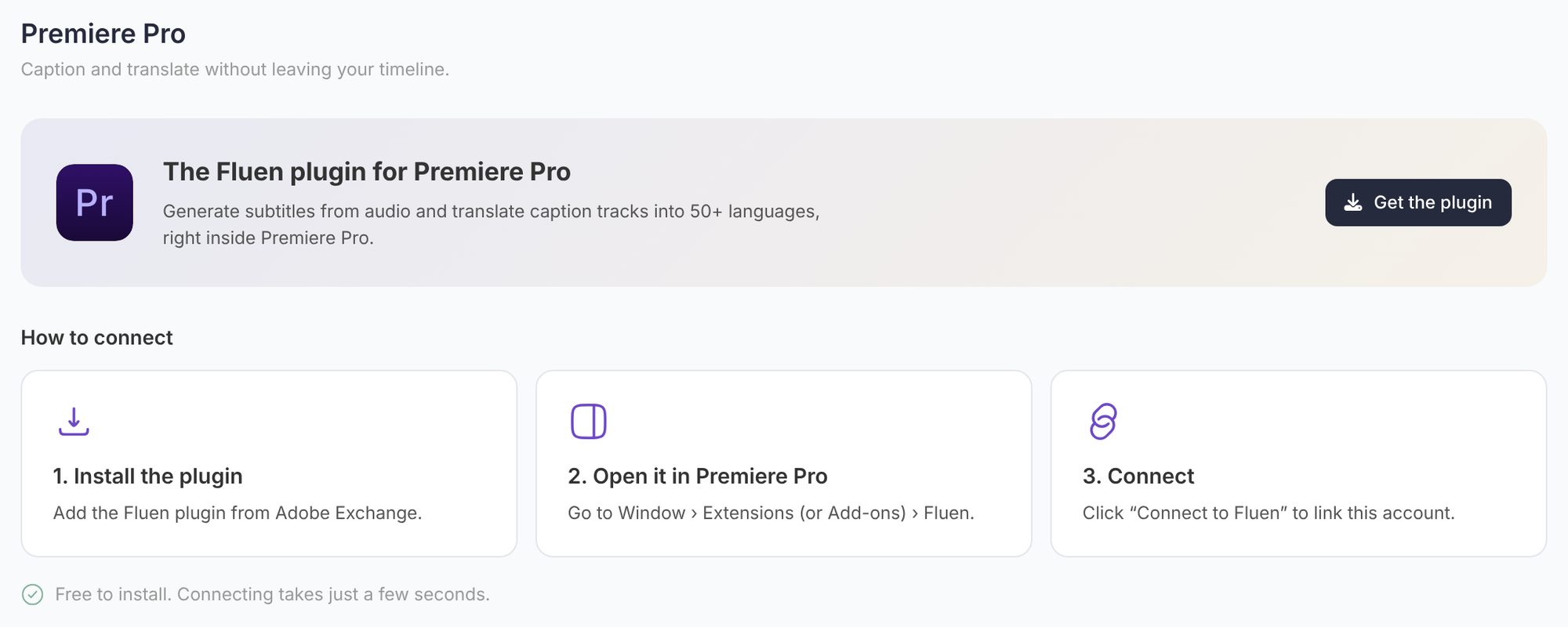
The Fluen plugin for Adobe Premiere Pro creates captions from your sequence audio and translates caption tracks into more than 50 languages, without leaving your edit. This guide covers installing it, connecting it to your Fluen account, and seeing or removing the connection later. The plugin is free to install; on the Premium and Team plans it uses your plan's credits, the same ones you use on the web.
Install the plugin from Adobe Exchange
Open the Fluen listing on Adobe Exchange and install it. It installs through the Creative Cloud app and stays up to date automatically. It works with Premiere Pro 25.6 and newer, on macOS and Windows. You can also reach the listing from Fluen Studio: My Account, Premiere Pro, Get the plugin.
Open the panel in Premiere Pro
In Premiere Pro, go to Window › Extensions (or Add-ons, depending on your version) › Fluen. The Fluen panel opens and can be docked like any other panel.
Connect to your Fluen account
In the panel, click Connect to Fluen. Your browser opens Fluen Studio: sign in with the account you already use (Google or email and password). When the page says "Head back to Premiere Pro", return to the panel, which finishes connecting on its own. There are no keys to copy and no setup files.
Create or translate captions
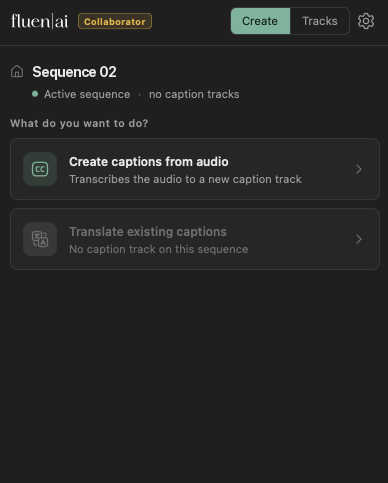
Choose what you want to do. To create captions, pick the spoken language and how the captions should look: line length, lines per caption and speaker markers; your workspace glossary is applied too. To translate, pick a caption track on your sequence (made with Fluen, with Premiere's own speech-to-text, or imported by hand) and the languages you want. The job runs in Fluen's cloud with progress in the panel, usually from 30 seconds to a few minutes. Only the sequence audio is uploaded for captioning, and only the caption text for translation; your video never leaves your machine.
Drag the result onto your sequence
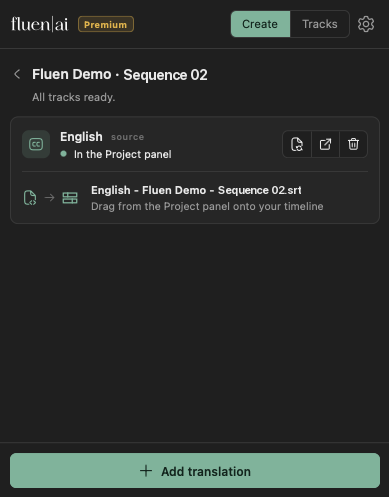
Premiere does not let plugins create caption tracks directly, so the finished subtitles land in your Project panel, colour-labelled so they are easy to spot. Drag the file onto your sequence and Premiere creates the caption track, ready to style and adjust like any other. The panel walks you through it.
See or remove the connection
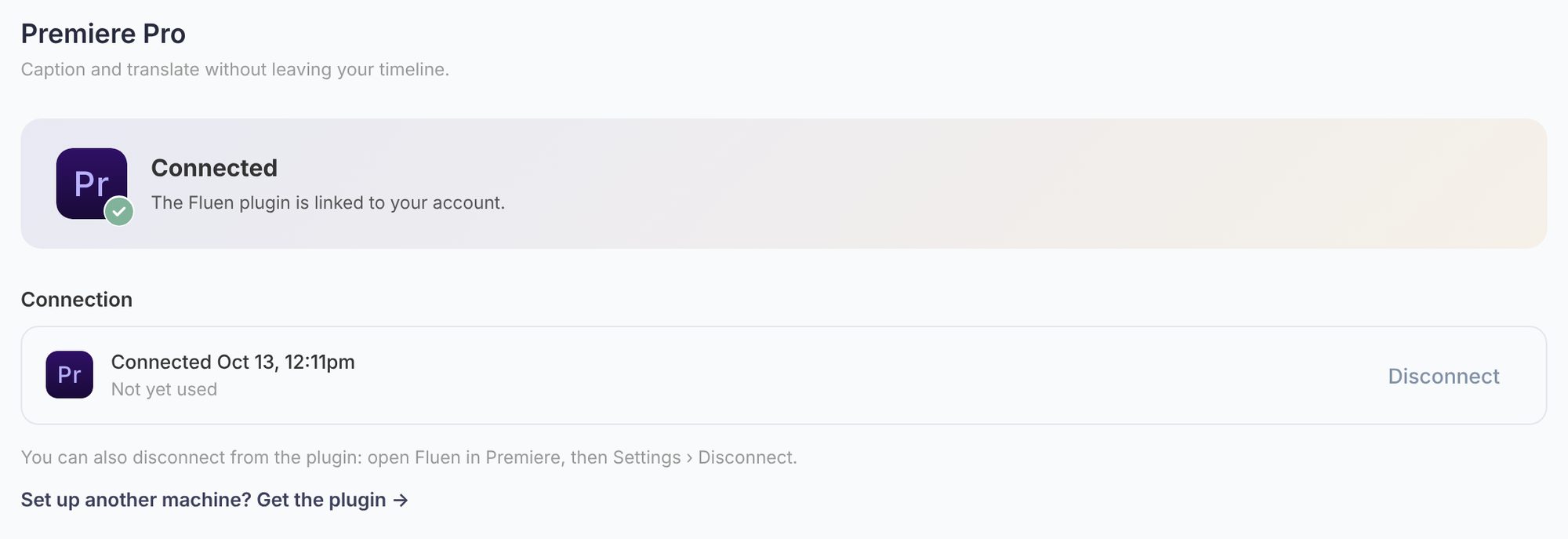
In Fluen Studio, open My Account and choose Premiere Pro in the settings menu. Once connected, the page confirms that the plugin is linked to your account and lists each connected plugin with when it was last active. Click Disconnect next to one, and confirm in the Disconnect Premiere Pro dialog, to remove it, for example when you change computers. You can also disconnect from the plugin itself: open Fluen in Premiere, then Settings › Disconnect.
Good to know
- Credits: captions and translations made from the plugin use your plan's credit minutes, exactly as on the web. There is nothing separate to buy, and with auto top-up turned on, a job your balance doesn't cover tops up as it starts. The Free plan lets you try the workflow on your own footage. See How Fluen pricing works.
- Sign-in problems: if the browser says the email is already registered with a different sign-in method, sign in the way you created the account. See Can't log in?
- More about the plugin: features, screenshots and questions are on the Fluen for Premiere Pro page.