
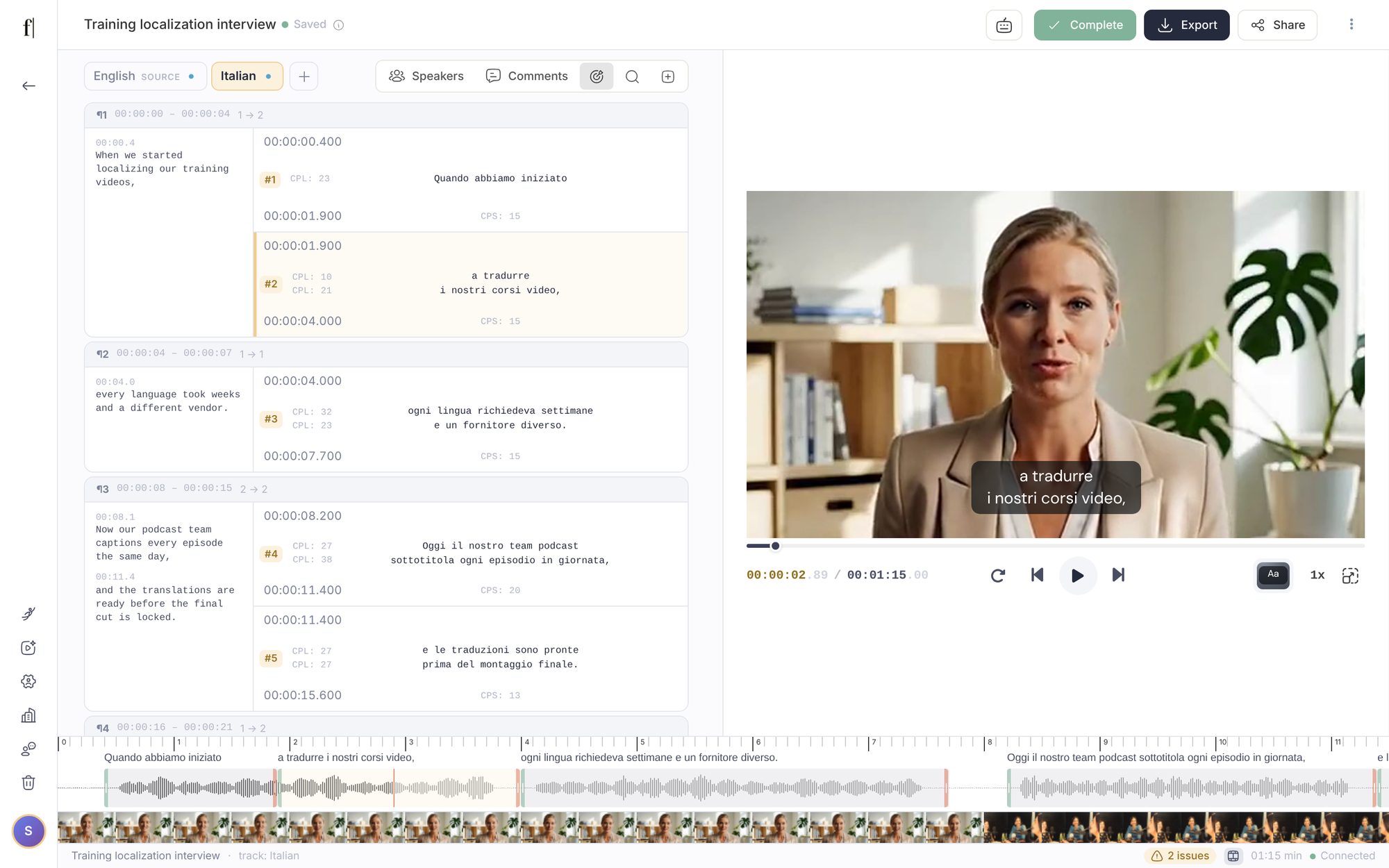
The editor is where you check and correct a track before you export it. This guide is a tour: how the screen is laid out, how the timeline and the issues list help you find what needs fixing, the toolbar buttons, the keyboard shortcuts, and how to switch the app to dark mode.
Find your way around
Click a track's chip in the library to open it. The editor has four areas:
- The subtitle list on the left. Every subtitle shows its start and end time, its text, and its line length (CPL) and reading speed (CPS). On a translation, each subtitle sits beside the original lines it came from. Click any text to correct it; changes save as you type.
- The toolbar above the list: Speakers, Rules and Comments, then three icon buttons: Follow playback, Find & Replace and Add subtitle at playhead.
- The player on the right, with the Caption style button in the row under the video.
- The timeline along the bottom, and under it the status bar with the issues counter.
The top bar holds the language tabs, Share, Export, the keyboard shortcuts button and, on captions, Import SRT (see Import corrected SRT files) and, while they are in review, Troubleshoot.
Move around with the timeline
The timeline shows frames from your video, the audio wave and the text of each subtitle, so you can see at a glance where someone speaks and which subtitle covers it. Click or drag anywhere on it to move the playhead there. To retime a subtitle, drag its left or right edge; the subtitles next to it keep it from overlapping them.
The Follow playback button (the target icon in the toolbar) keeps the subtitle list scrolled to the subtitle that is playing. Turn it off when you want the list to stay put while the video plays.

Fix what the issues list flags
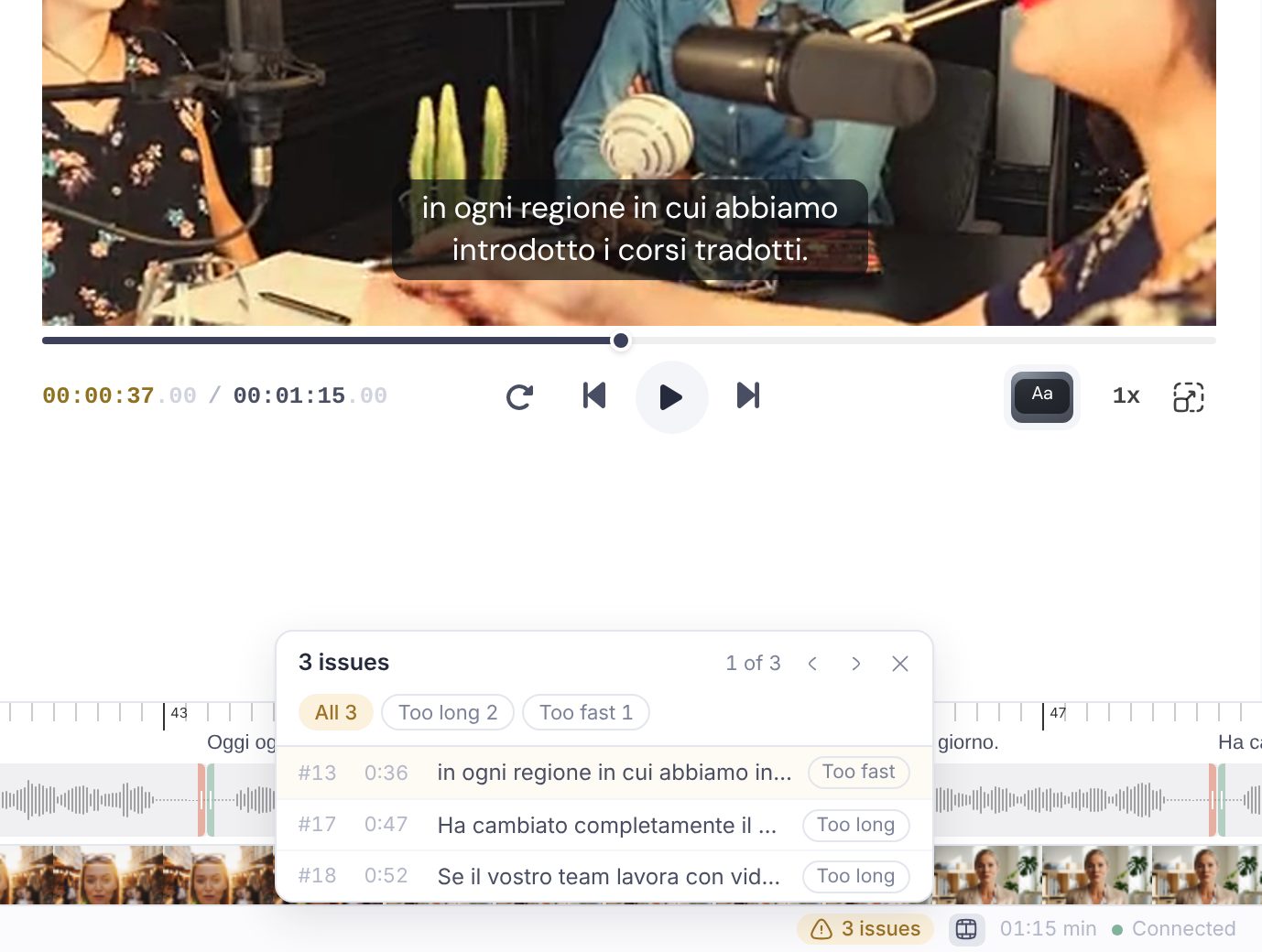
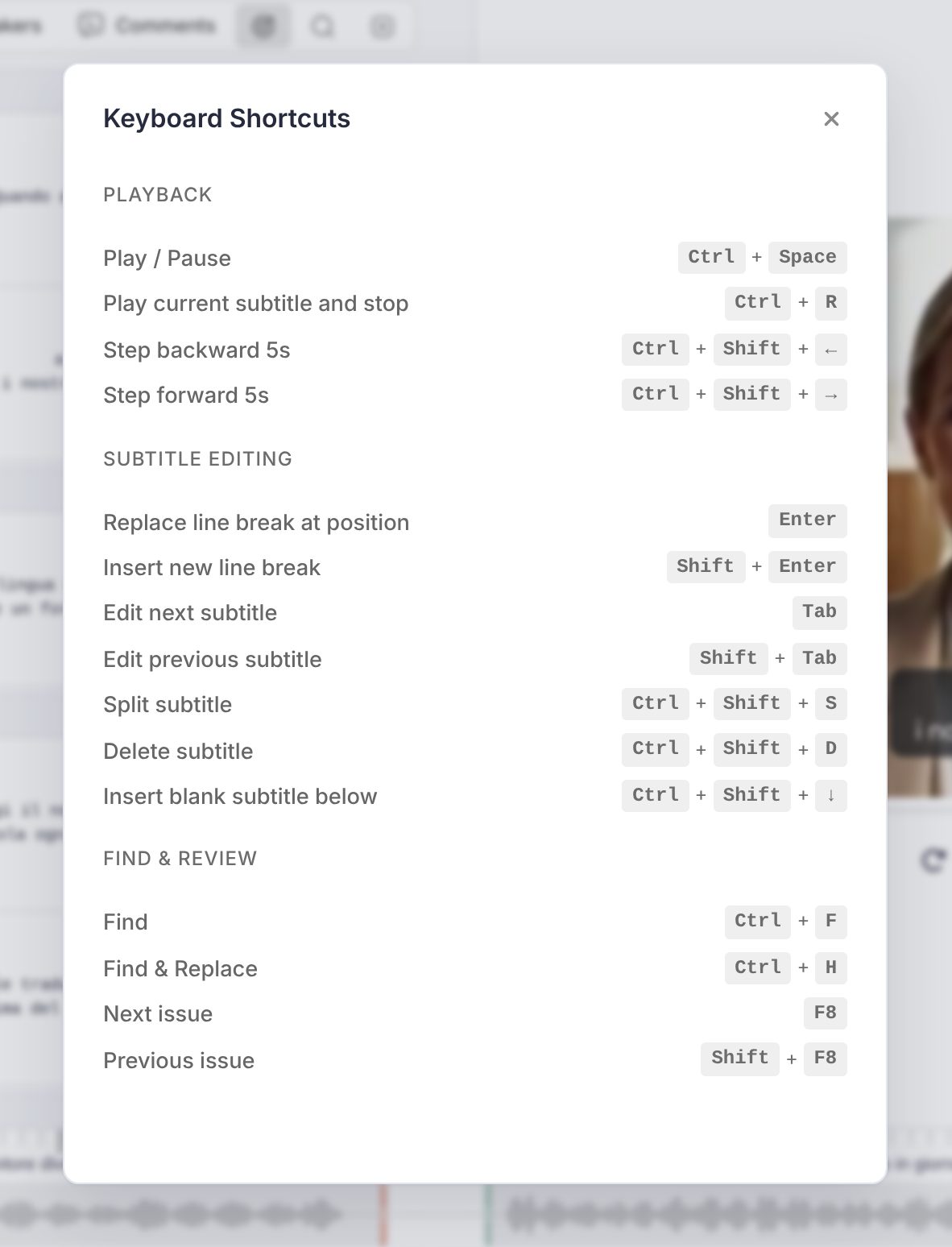
When some subtitles break the limits, a counter such as 3 issues appears in the status bar. Click it for the list: subtitles over the line-length limit (Too long) and, on translations, faster than a comfortable reading speed (Too fast). Click a row to jump to that subtitle. The list stays open while you edit, and a row disappears as soon as its subtitle is fixed. F8 goes to the next issue and Shift+F8 to the previous one, with the list open or closed. More in Font size and characters per line.
Add, split and delete subtitles
To add a subtitle where the video is, move the playhead to the spot and click Add subtitle at playhead (the plus icon at the end of the toolbar). On a caption track that is already complete, reopen it first. With the cursor in a subtitle's text:
- Ctrl+Shift+S splits the subtitle at the cursor.
- Ctrl+Shift+D deletes it.
- Ctrl+Shift+Down arrow inserts a blank subtitle below it.
- Enter moves the line break to the cursor, and Shift+Enter adds a new one.
- Tab and Shift+Tab move to the next or previous subtitle.
Find and replace
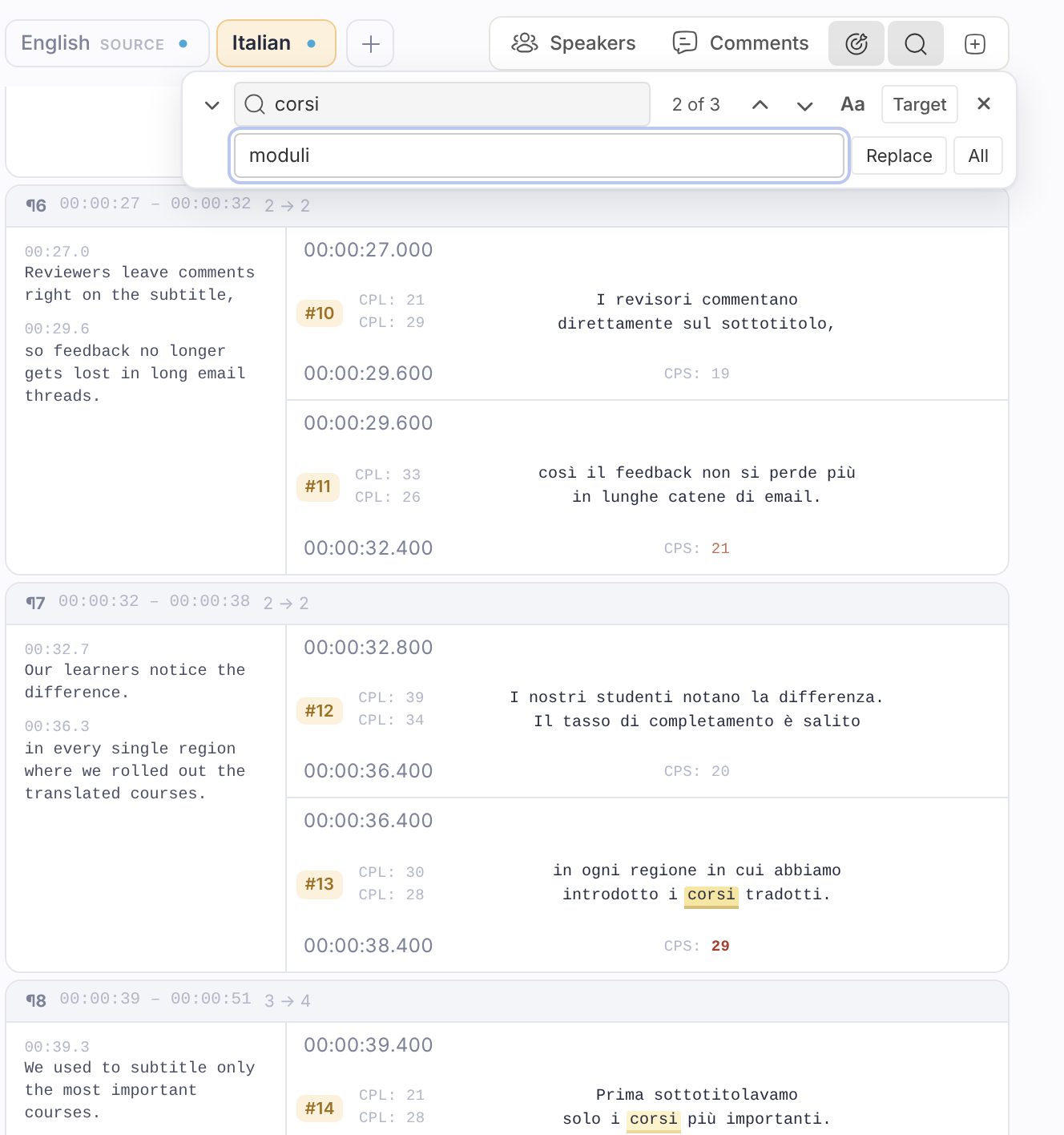
Click the search icon in the toolbar (its tooltip reads Find & Replace), or press Ctrl+F (Cmd+F on a Mac). Type in Find; Enter and Shift+Enter step through the matches, and the Match case button narrows them. Type the new wording in Replace, then use Replace for the current match or Replace all. On a translation, Target only limits replacing to the translated text. Esc closes the bar.
Keep the shortcuts at hand
The keyboard icon in the top bar opens Keyboard Shortcuts, the full list. The ones you will use most while reviewing:
| Action | Keys |
|---|---|
| Play / Pause | Ctrl+Space |
| Play current subtitle and stop | Ctrl+R |
| Step backward or forward 5 seconds | Ctrl+Shift+Left arrow / Right arrow |
| Find / Find & Replace | Ctrl+F / Ctrl+H |
| Next / previous issue | F8 / Shift+F8 |
Audio files
An audio file has no picture, so it gets a player of its own: the recording's sound wave takes the place of the video, with a playhead that moves as it plays. Everything else works the same, except the options that only make sense on video, such as caption styles, positioning and the Rules button.
Dark mode
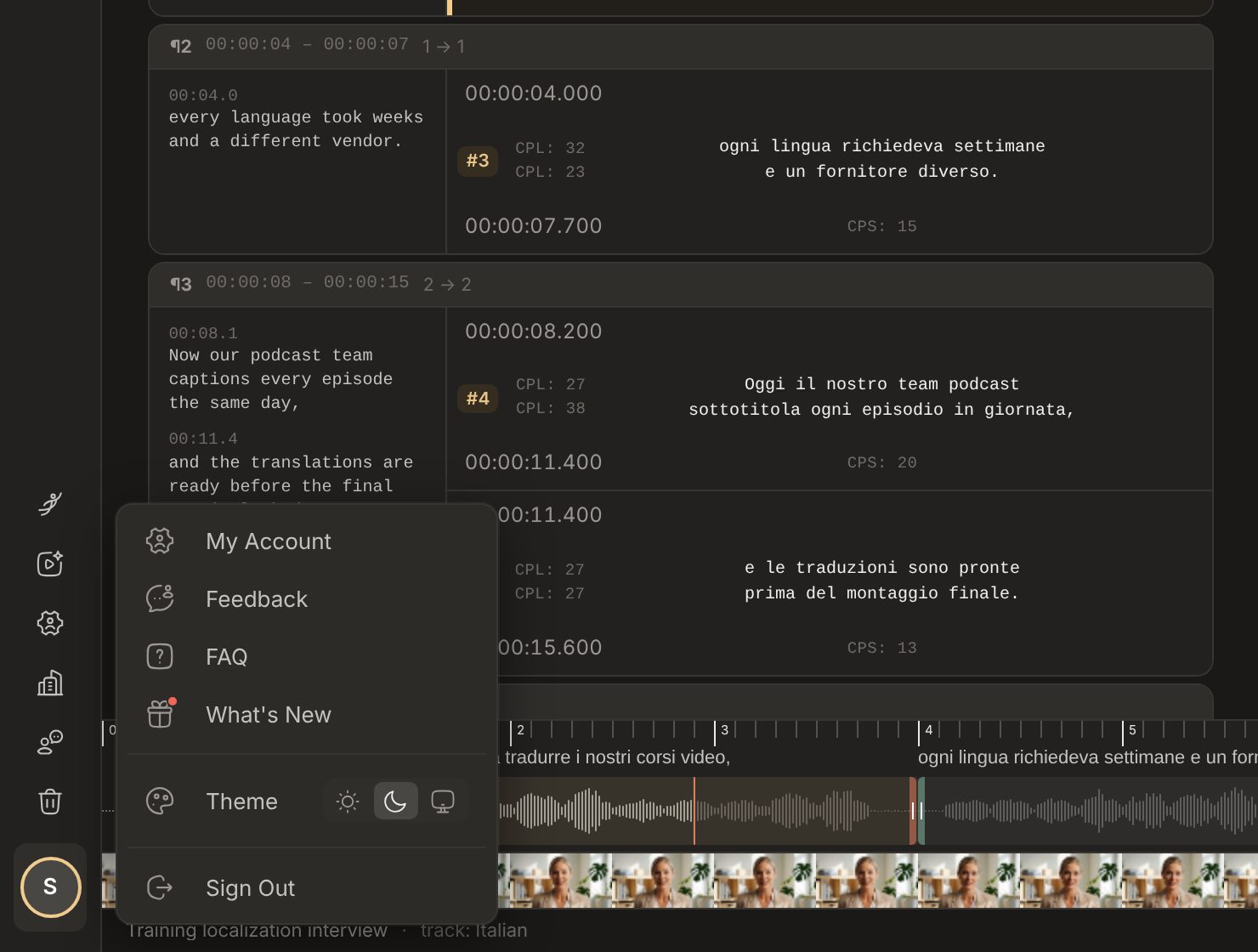
Fluen Studio has a light and a dark theme. Open the menu under your name at the bottom of the left sidebar, find Theme, and pick Light, Dark or Match system, which follows your computer's setting and switches when it does. The choice is remembered in each browser you use.